


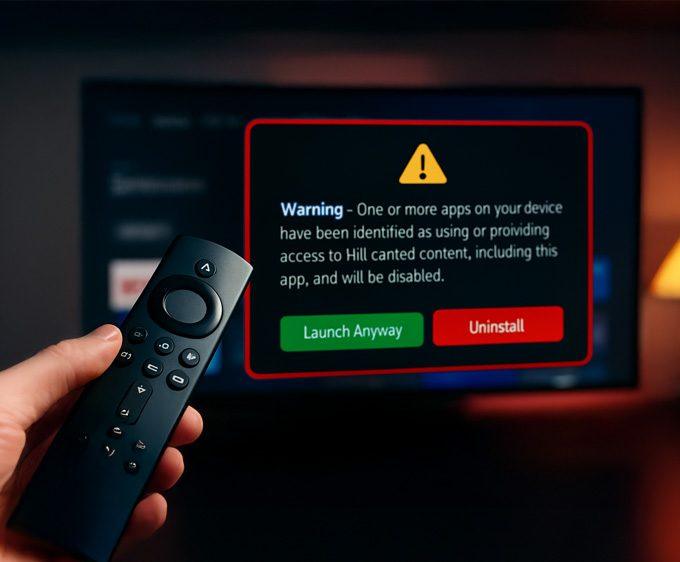














If your Firestick feels sluggish or apps keep crashing, learning how to clear cache on Firestick is one of the quickest fixes. Over time, apps store temporary files that slow down your device. As a result, clearing the cache can make a big difference. In this guide, we’ll show you how to clear the cache and boost Firestick performance with a few simple steps.
For more Firestick fixes like this, explore our Troubleshooting & Performance hub — it covers freezing, buffering, app crashes, Wi-Fi issues, and 4K optimisation tips.
Using More Than One Streaming Device?
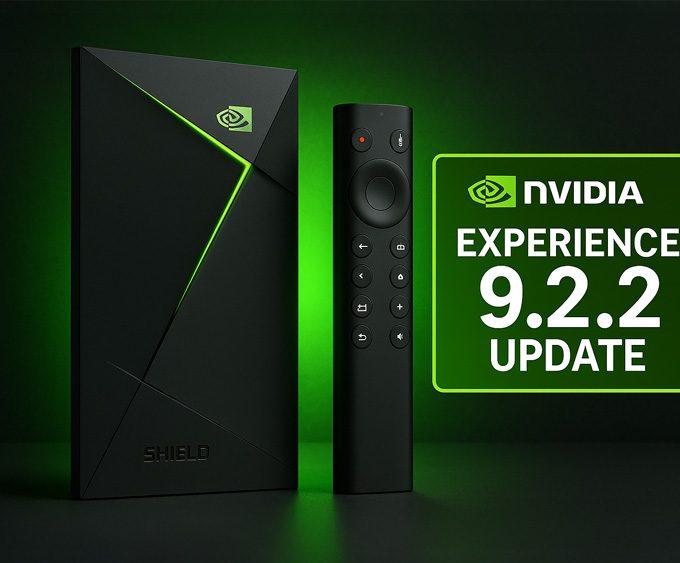
If you also use Android TV or Google TV devices, such as the NVIDIA Shield, keeping them optimised is just as important. NVIDIA recently released the Shield Experience 9.2.2 update with improved remote responsiveness, new accessibility options, and key streaming fixes — including a Disney+ audio dropout patch. Updating both your Firestick and Shield TV ensures better performance across your whole setup.
👉 New to Fire TV? Don’t miss our Firestick 2026 Setup Guide for step-by-step instructions on setting up your device from scratch.
Why Clearing Cache Matters
Every app you install uses cache to store data, such as images, login info, or video previews. While this helps apps run faster at first, the cache can grow too large, taking up valuable space and slowing everything down. Therefore, clearing cache resets these temporary files without deleting your actual app data.
For full official instructions from Amazon on how to clear an app’s cache and data, see the Amazon Help article on managing applications.
It’s also worth noting what clearing cache doesn’t affect. Features like Alexa voice control and voice tracking are not performance-related, but many users confuse the two. If you want a clear explanation of how Fire TV voice tracking actually works — and how to stop voice recordings being saved — we break it down in our guide: Fire TV Voice Tracking: The Setting Most People Miss.
Clearing cache helps, but Kodi often needs deeper tuning. If you’ve recently installed it, our install Kodi on Fire TV guide shows how to set everything up correctly before applying cache or playback tweaks.
👉 If you’re also looking for a safe, ad-free VPN to protect your Firestick or Google TV, see our full guide: Proton VPN Free on Firestick & Google TV: The Complete 2026 Setup Guide — it works perfectly on streaming devices without slowing them down.
Step 1: Open Settings
From the Fire TV home screen, scroll to the gear icon ⚙️ in the top-right corner to open Settings.
Step 2: Go to Applications
In the Settings menu, select Applications → Manage Installed Applications.
Step 3: Choose the App
Scroll through the list and select the app you want to manage. Heavy apps like Prime Video, Netflix, or Disney+ often store the most cache. In many cases, these are the ones slowing down your device.
Step 4: Clear Cache
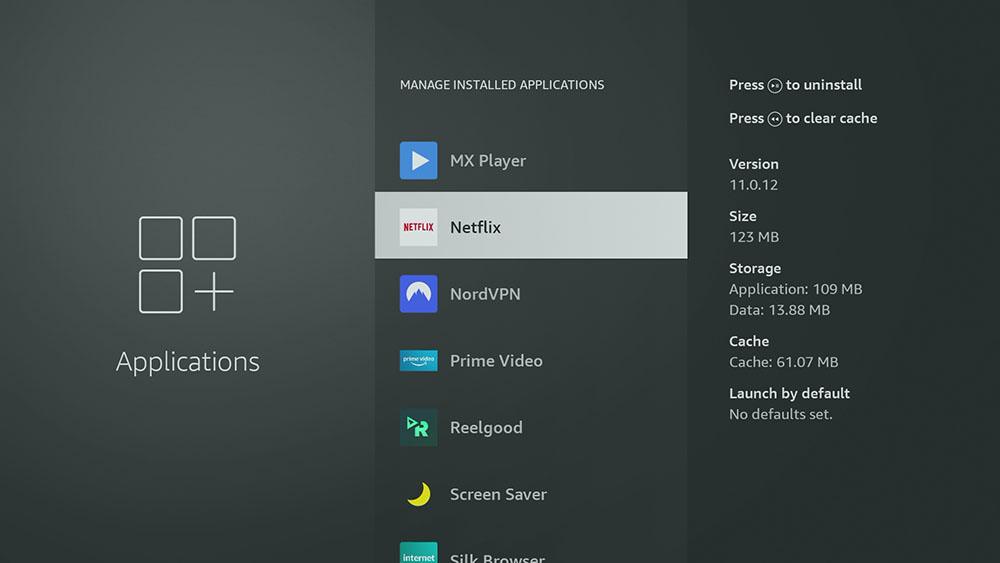
On the app’s info screen, select Clear Cache. If the app is giving you constant issues, you can also choose Clear Data (note: this resets login details and preferences). However, try clearing the cache first before resorting to a data reset.
Step 5: Repeat for Other Apps
Go through other apps you frequently use and clear their cache too. In addition, this frees up storage and helps prevent freezing or buffering.
Bonus Tip: Restart Firestick After Clearing Cache
After clearing cache, hold the Select button and Play/Pause button together for 5 seconds to restart your Fire TV Stick. This ensures changes take effect and gives your device a fresh start.
You can also browse our full Streaming Guides & How-To hub for setup tutorials, performance boosts, and advanced optimisation guides for Fire TV and Google TV.
Extra Ways to Improve Fire TV Performance
- Uninstall Unused Apps: Go to Manage Installed Applications and delete apps you never use. This way, you free up storage instantly.
- Turn Off Auto-Updates: Prevent background processes by disabling automatic app updates. As a result, fewer apps will run in the background.
- Disable Unused Features: Features like Data Monitoring or App Notifications can be turned off in settings to free up resources. Furthermore, it reduces distractions while streaming.
- Keep Software Updated: Go to Settings → My Fire TV → About → Check for Updates. Updates often include performance fixes. Moreover, they help patch security issues.
- Use a trusted VPN for privacy & access: If you stream on public or shared Wi-Fi, or want to access region-locked apps, a secure VPN helps protect your device without hurting performance. Our guide explains how to install it safely: Proton VPN Free on Firestick & Google TV: The Complete 2026 Setup Guide.
Using a Shield TV as well? NVIDIA’s latest Shield Experience 9.2.2 update includes stability improvements that can help reduce app crashes and streaming glitches across major apps like Disney+.
For more advanced tweaks, check out our best Firestick settings for 4K HDR streaming
guide.
When Should You Clear Cache?
- If apps are buffering or crashing.
- If you’re running out of storage.
- After a big Fire OS update.
- As routine maintenance (every few weeks).
You should clear cache on Firestick whenever apps slow down, buffer, or crash. That way, you prevent problems before they become serious.
For more device-fix tutorials, visit our Troubleshooting & Performance hub to keep your streaming devices fast and stable.
Verdict
Regularly clearing cache on Firestick is a quick and safe way to improve performance. However, for the best results, it should be combined with uninstalling unused apps and keeping software up to date. Ultimately, these simple steps will help your Firestick stay fast, responsive, and ready to stream.
FAQ
Does clearing cache delete my apps?
No, clearing cache only removes temporary files. Your apps and data remain intact.
What’s the difference between Clear Cache and Clear Data?
Clear Cache deletes temporary files, while Clear Data resets the app entirely (including sign-in details).
How often should I clear cache?
Every few weeks, or whenever you notice apps slowing down. In particular, do it after system updates.
Will this speed up streaming quality?
Yes, reducing background clutter can help apps run smoother. Nevertheless, your internet speed also plays a big role.









Leave a comment