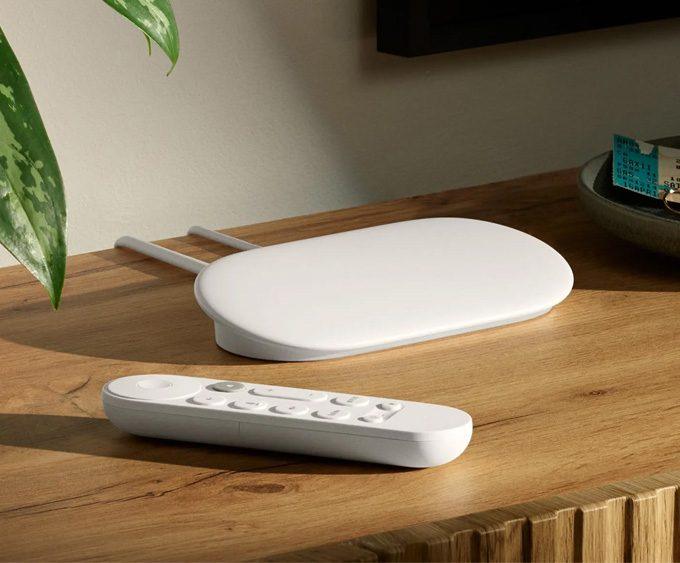
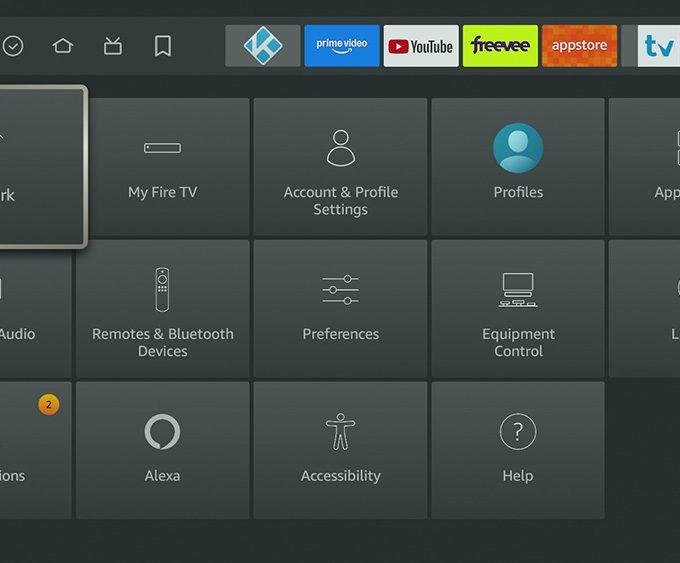
The Firestick 2026 Setup Guide is here to make your life easy. Whether youβre unboxing a brand-new device or upgrading from an older Fire TV model, this step-by-step tutorial will help you set everything up in minutes.
For more setup tutorials like this, visit our Device Setup & Optimisation hub for Firestick, Google TV, and NVIDIA Shield configuration guides.
If youβd prefer to follow along visually, watch my full video tutorial below β or continue reading for the complete instructions.
πΊ Video Tutorial: π Unbox & Unleash! Your Super Easy Amazon Fire TV Stick Setup Guide! π
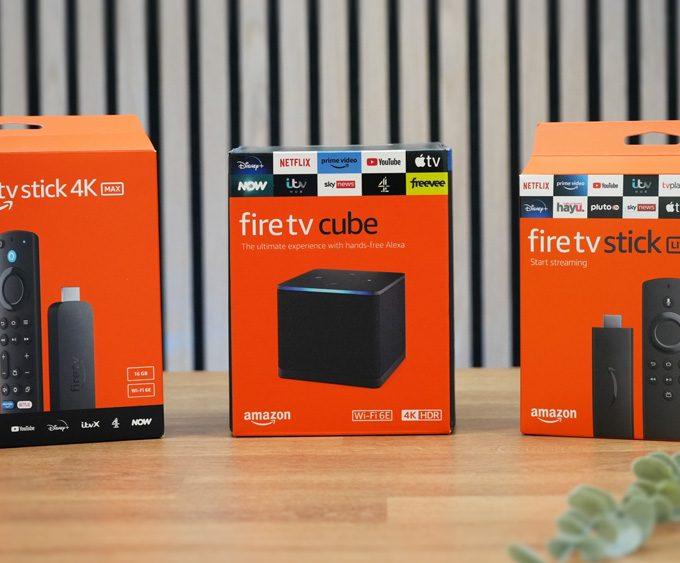
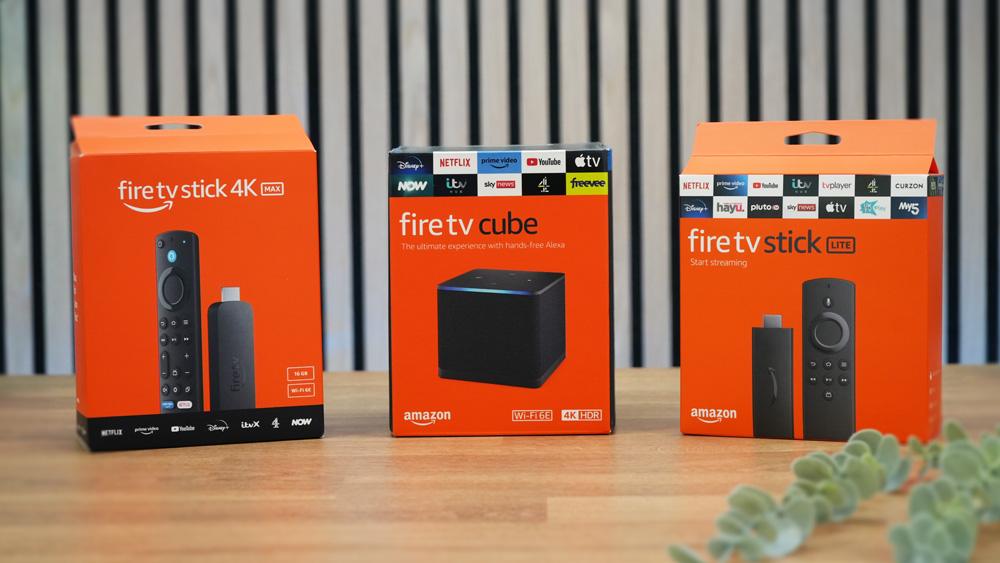
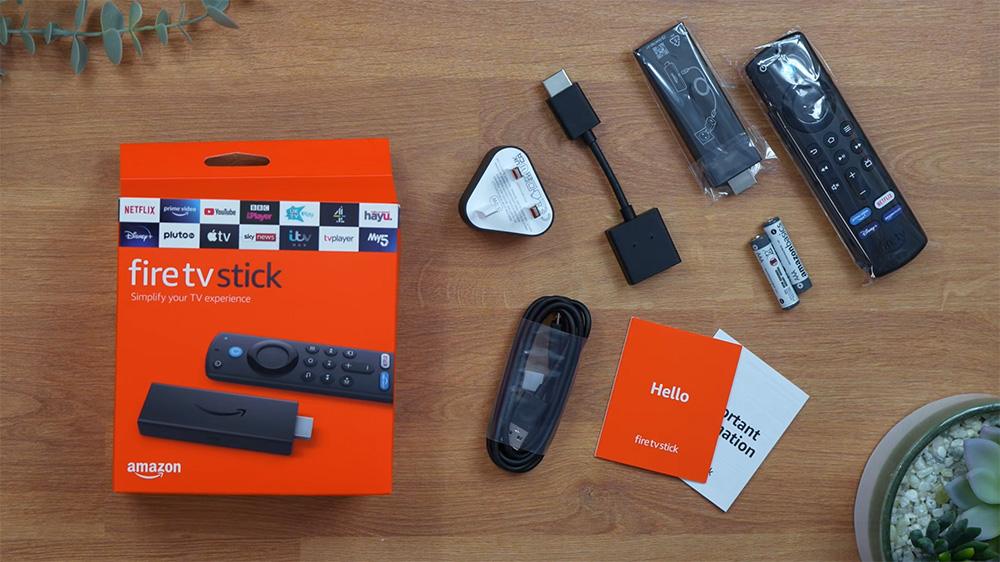
Inside the box, youβll find:
Take a moment to familiarise yourself with the included itemsβtheyβll make setup easier.
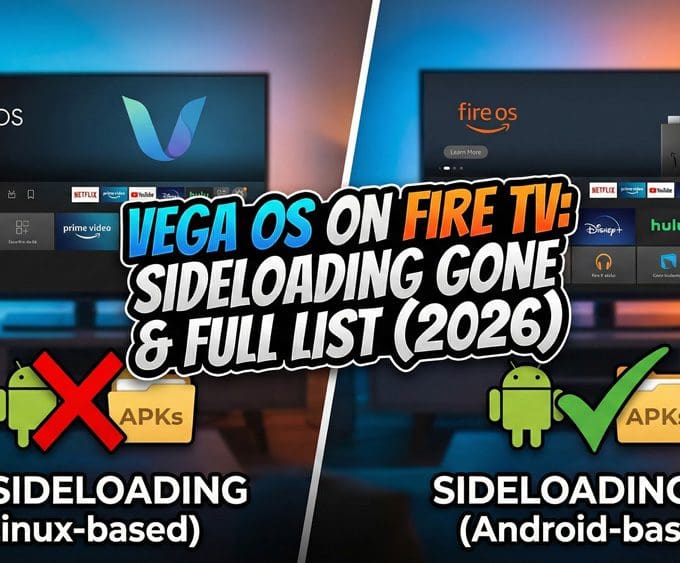
π If you are planning to buy a new Fire TV, make sure to read Vega OS Fire TV: Sideloading Gone & Full List (2026) to see which models you should avoid.
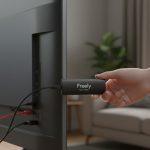
Plug the Fire TV Stick into an HDMI port on your TV. If space is tight, use the included HDMI extender.
Next, connect the USB power cable to the Firestick and plug it into the wall adapter. Amazon recommends using the adapter instead of a TV USB port for the best performance.
π‘ Tip: For optimal performance, especially with power-hungry apps, use the included wall adapter.
Switch on your TV and use your remote to select the HDMI input where you connected the Firestick. You should see the Fire TV logo appear on the screen.
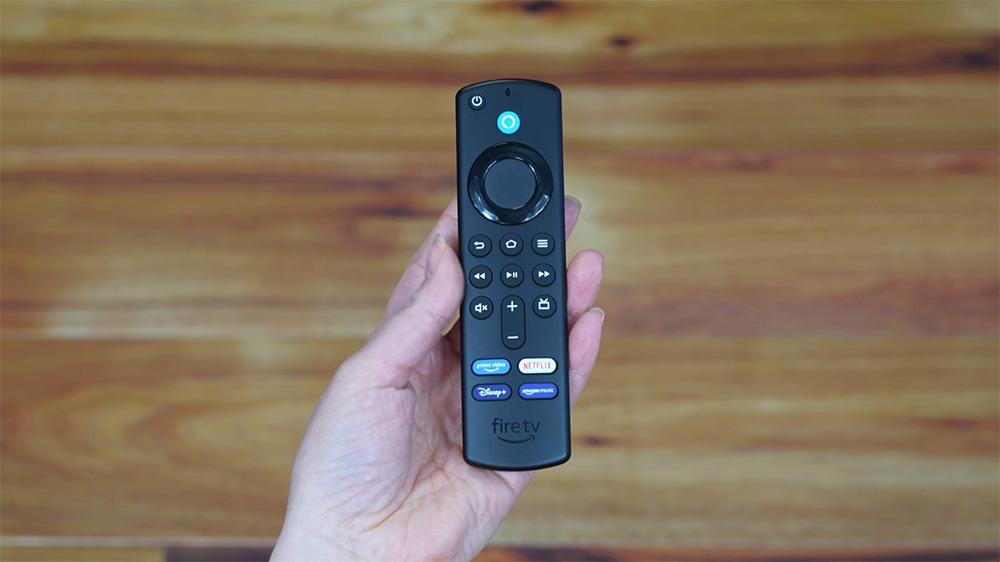
Insert the included AAA batteries into the Fire TV remote. The remote should automatically pair with your device. If it doesnβt, press and hold the Home button for 10 seconds to pair it manually.
π‘ All Fire TV remotes now come with Alexa built-in. You can press the microphone button to launch apps, search shows, or ask things like, βWhatβs the weather in London?β
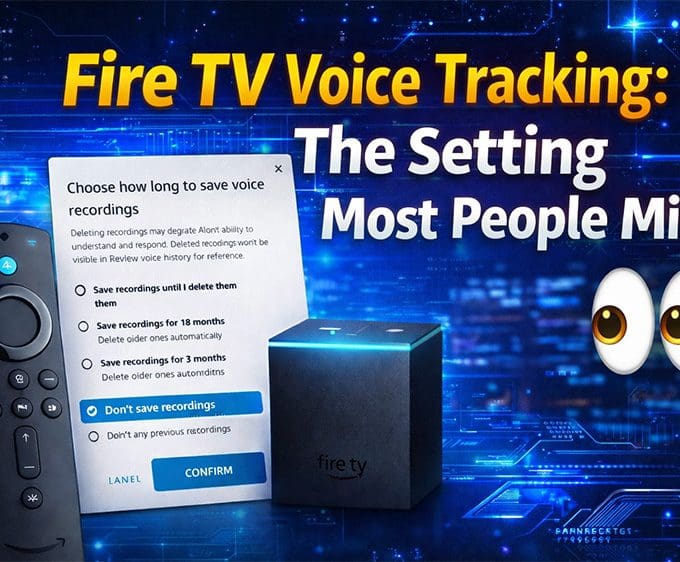
During setup, itβs also worth checking your Fire TV voice tracking settings, as Amazon gives you more control over voice recordings than most people realise. We break down exactly how it works β and how to stop recordings being saved β in our guide: Fire TV Voice Tracking: The Setting Most People Miss.
Follow the on-screen instructions to connect your Firestick to your home Wi-Fi network. Enter your Wi-Fi password carefully β once connected, your Firestick will check for updates and may restart during the process.
π For the best 4K HDR experience, Amazon recommends a minimum speed of 15 Mbps. It’s super easy to check your internet speedβjust download a free speed test app.
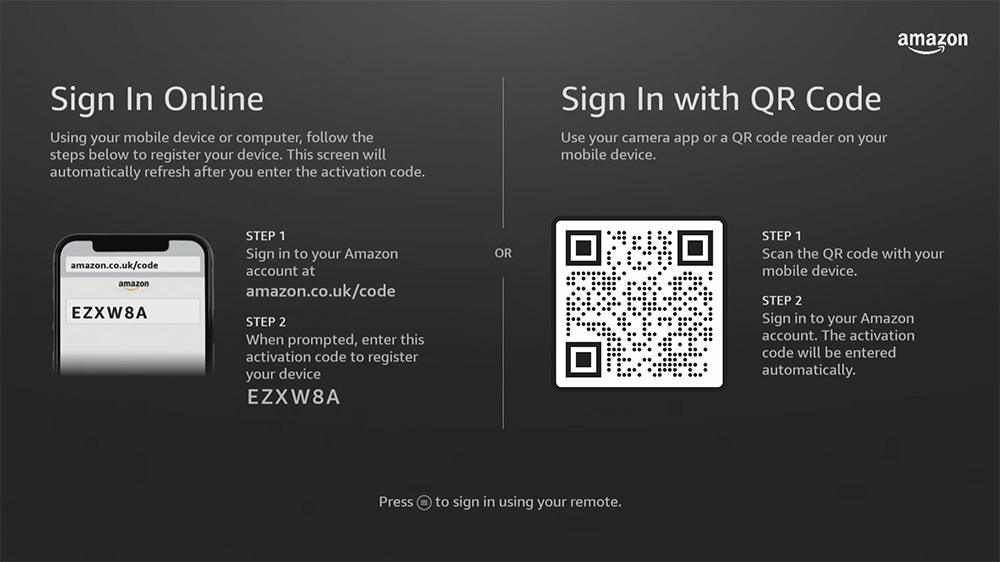
Youβll be asked to sign in with your Amazon account. If you donβt have one, you can create it during setup. This step is important because it links your Firestick to your Prime Video library, apps, and personalized settings.
If prompted, you can register faster using your phone or computer at amazon.com/code. Just enter the unique code displayed on your TV.
You can also browse our full Streaming Guides & How-To hub for setup walkthroughs, optimisation tips, and streaming performance guides.
If you’re planning to stream privately or want to access region-specific apps, consider adding a VPN to your device. Our full guide explains how to install and use Proton VPN Free on Firestick & Google TV β including the easiest way to sign in with an 8-digit code.
After logging in, you can:
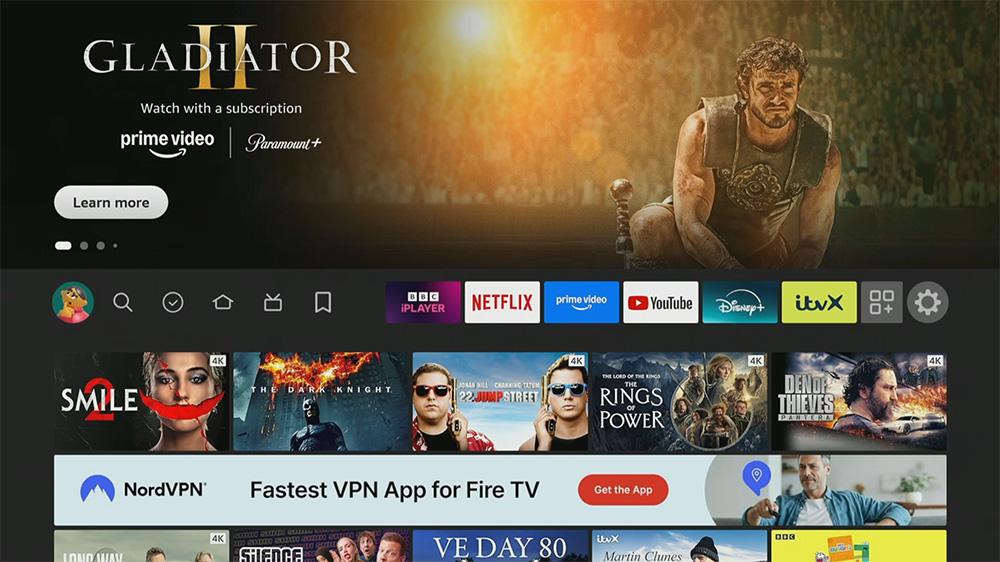
This is also a good time to explore the Fire TV home screen and adjust display or sound settings if needed. Many users also choose to add apps that arenβt available in the Amazon Appstore, such as Kodi β our install Kodi on Fire TV guide walks you through the process safely, step by step.
π For more tips, see our guide: Best Firestick Settings for 4K HDR Streaming.
Thatβs it! Your Firestick is now ready. Browse apps like Netflix, Prime Video, Disney+, and YouTube, or use Alexa voice search to find something to watch.
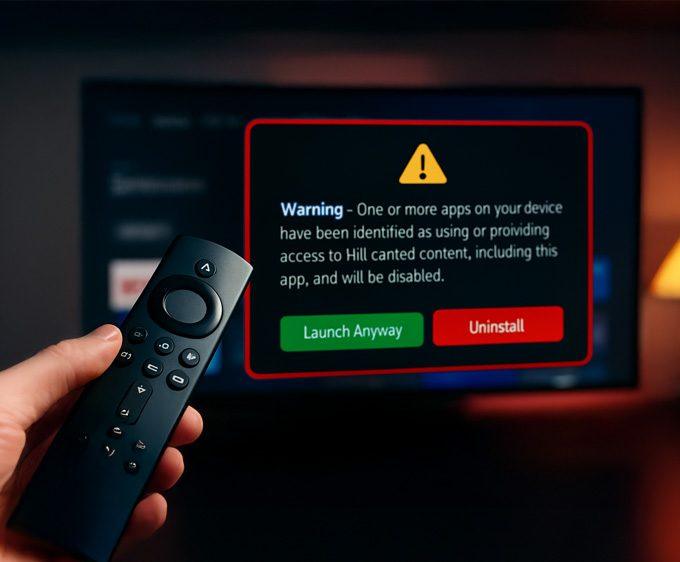
Some Fire TV devices now show a new alert when certain apps are flagged β you can see the exact Firestick warning message and which apps are affected here: πΒ Firestick Blocks Are Now LIVE: The Exact Warning & Full List of Affected Apps.
And thatβs it β your Firestick 2026 is ready to go! π Whether you followed along with the video or used this written guide, youβre now set up for endless streaming.
For more Firestick setup help and optimisation tips, explore our Device Setup & Optimisation hub.
If youβd like to dive deeper, here are a few helpful reads:
Happy streaming! π¬β¨
Yes, it works with any TV that has an HDMI port.
Go to Settings β My Fire TV β Reset to Factory Defaults. The device will restart and guide you through setup again.
Yes. Firestick 2026 supports 4K HDR (including Dolby Vision on supported TVs) and smooth streaming over dual-band Wi-Fi.
Tanya is the founder of unboxd.tech, where she shares guides, reviews, and tips on streaming devices and apps. She focuses on making streaming simple with practical fixes and smart home insights.
Setting up a new streaming device can feel overwhelming. However, this guide...
ByTanya9 months AgoThe Amazon Fire TV Stick is one of the most popular streaming...
ByTanya9 months Ago
Leave a comment