



The Amazon Fire TV Stick is one of the most popular streaming devices today. However, to unlock the best performance, you’ll need the right setup. As a result, adjusting a few key settings can transform your experience. In this guide, we’ll walk through the top Firestick 4K HDR Settings 2025 so you can enjoy sharper visuals, smoother motion, and stable Ultra HD streaming.
Whether you’re watching Netflix, Prime Video, or sideloading your favourite apps, these tweaks will help your Firestick shine.
For more Firestick setup tutorials, visit our Device Setup & Optimisation hub — covering 4K settings, performance tweaks, and beginner-to-advanced setup guides.
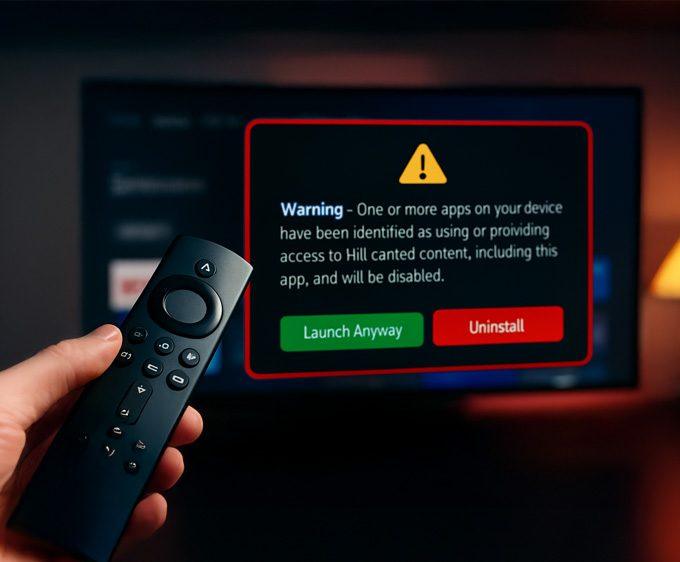
If an app refuses to open after adjusting settings, it may not be a performance issue — some Fire TV devices now show a new alert when certain apps are flagged. You can see the exact Firestick warning message and which apps are affected here: 👉 Firestick Blocks Are Now LIVE: The Exact Warning & Full List of Affected Apps.
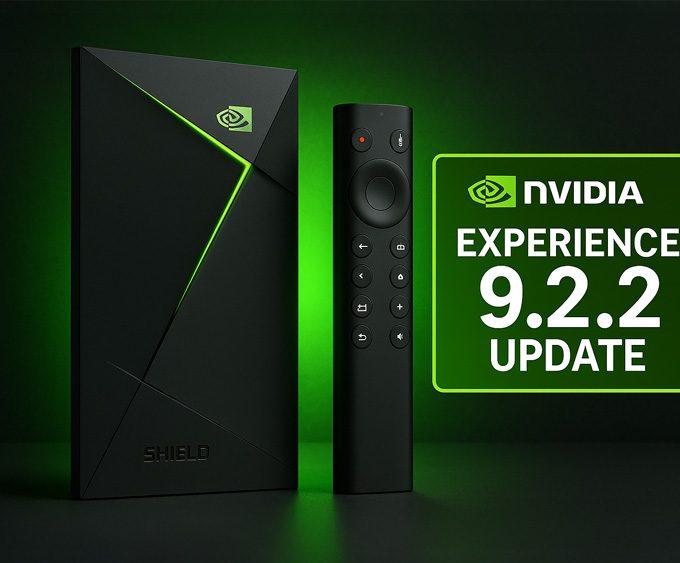
Using Devices Like the NVIDIA Shield TV Too? Update Those for Better Performance. If you also stream on an NVIDIA Shield TV alongside your Firestick, make sure it’s fully updated. NVIDIA recently released the Shield Experience 9.2.2 update, which adds new accessibility tools, improves remote responsiveness, and fixes stability issues such as the Disney+ audio dropout bug. Keeping both your Firestick and Shield up to date ensures the smoothest 4K HDR performance across all your apps.
Why Adjust Firestick Settings?
Many Firestick users don’t realise that default settings prioritise compatibility and power saving, not performance. In addition, when you enable the right video, sound, and system settings, your Firestick can push its hardware to deliver cinema-grade 4K HDR.
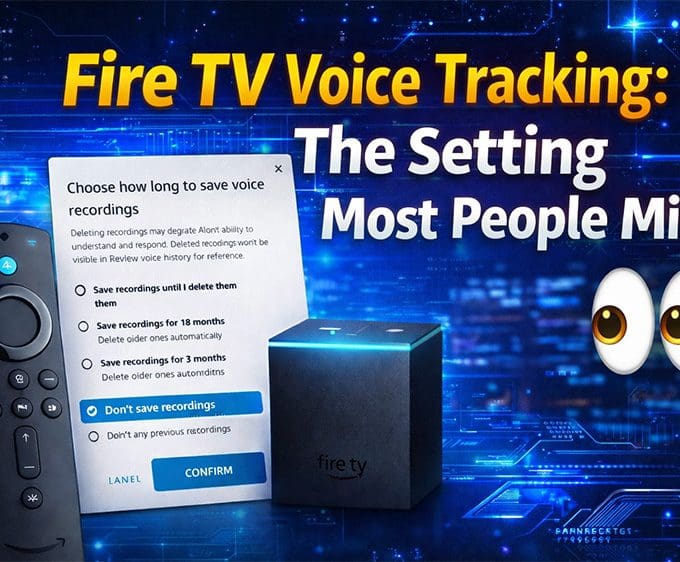
It’s also worth checking Fire TV voice tracking settings at this stage. Voice control behaves differently depending on the device you use, and Amazon includes a setting that controls whether Alexa voice recordings are saved at all. We explain exactly how it works — and where to find the option most people miss — in our guide: Fire TV Voice Tracking: The Setting Most People Miss.
It’s also about stability: adjusting cache, developer options, and HDMI output ensures fewer buffering issues and more accurate colours on your 4K HDR TV. Therefore, if you want the best possible streaming experience, applying the Firestick 4K HDR Settings 2025 outlined below is essential.
For further guidance, Amazon’s own Fire TV support page explains some of the official troubleshooting steps — but the tweaks below go further.
The 13 Best Firestick Settings for 4K HDR Streaming
Here’s a breakdown of the essential settings to check and adjust:
1. Set Video Resolution to Auto (or 2160p 60Hz)
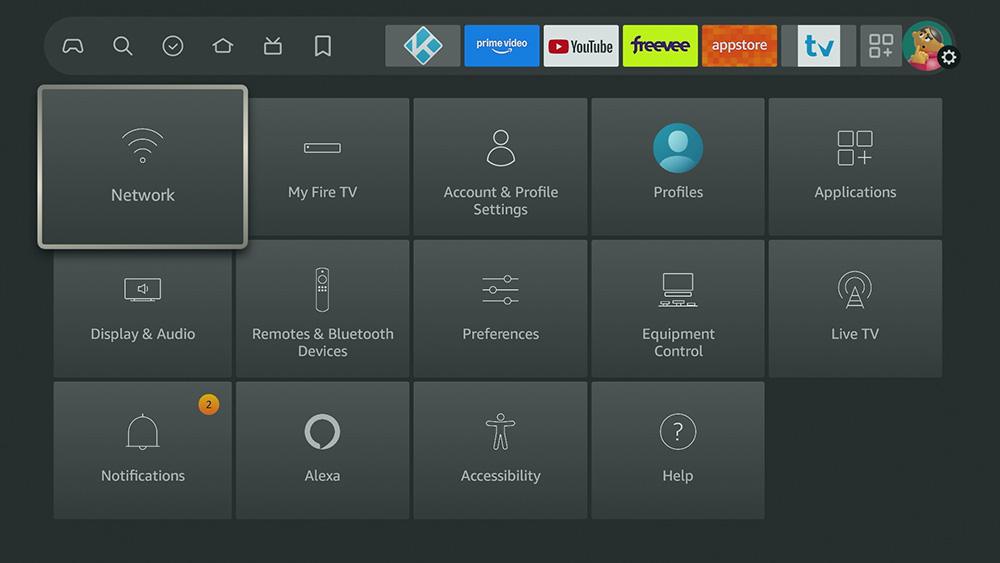
- First, go to Settings → Display & Audio → Display → Video Resolution
- Select Auto (recommended) or manually choose 2160p 60Hz for full 4K output.
2. Enable Match Original Frame Rate
- Next, go to Settings → Display & Audio → Display → Match Original Frame Rate
- Set this option to On. This reduces motion stutter by syncing to the content’s frame rate.
3. Enable Match Dynamic Range (Essential for Firestick 4K HDR Settings 2025)
- After that, go to Settings → Display & Audio → Display → Dynamic Range Settings
- Select Adaptive so the Firestick switches between HDR10, Dolby Vision, or SDR automatically.
4. Turn On HDMI CEC Control
- In addition, go to Settings → Display & Audio → HDMI CEC Device Control
- Switch this to On. Now your Firestick can turn your TV on/off and respond to your TV remote.
5. Change Audio to Dolby Digital Plus
- For better sound, go to Settings → Display & Audio → Audio → Surround Sound
- Choose Best Available or Dolby Digital Plus to unlock Atmos and higher-quality streams.
6. Set Display Calibration
- Then, go to Settings → Display & Audio → Display → Calibrate Display
- Follow the on-screen guide to adjust until all four arrows fit within your TV screen edges.
7. Enable Adaptive HDR
- Similarly, go to Settings → Display & Audio → Display → Dynamic Range Settings
- Choose Adaptive (instead of Always HDR) for the most accurate brightness and colour handling.
You can also browse our full Streaming Guides & How-To hub for setup walkthroughs, optimisation guides, and performance fixes for Firestick, Google TV, and NVIDIA Shield.
8. Turn Off Data Monitoring
- Next, go to Settings → Preferences → Data Usage Monitoring
- Set this to Off. It stops background data collection, freeing up bandwidth for streaming.
9. Adjust Ambient Experience Settings
- Afterwards, go to Settings → Display & Audio → Ambient Experience → Ambient Preferences
- From here, you can choose artwork, widgets, or a clock display for idle time.
You can also adjust how quickly the Ambient Experience starts when the device is inactive.
💡 Tip: Choosing a darker or static background can reduce distractions and help your TV conserve energy during long pauses.
10. Enable or Disable ADB Debugging (Advanced Users)
- For security, go to Settings → My Fire TV → Developer Options → ADB Debugging
- For security reasons, keep this Off unless you specifically need to connect your Firestick to a PC for testing or file transfers.
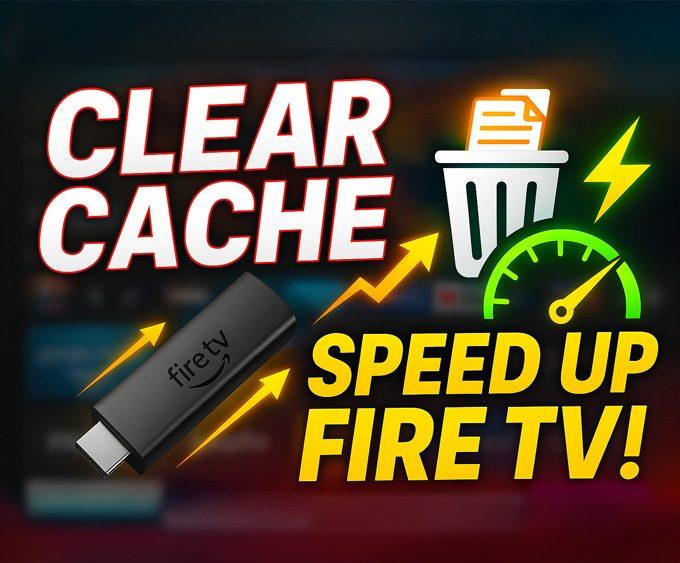
11. Clear App Cache Regularly
- From time to time, go to Settings → Applications → Manage Installed Applications
- Select a streaming app (e.g., Prime Video, Netflix) → Clear Cache. Do this monthly or when buffering starts.
12. Use 5GHz Wi-Fi Band
- To improve stability, go to Settings → Network → select your 5GHz Wi-Fi network
- Enter your password and connect. This reduces interference and improves streaming stability.
If you want an additional layer of stability and privacy — especially when using apps that rely on region settings or consistent routing — a lightweight VPN can help.
For a completely free option that works well on Firestick and Google TV, check out our full guide: 👉 Proton VPN Free on Firestick & Google TV: The Complete 2025 Setup Guide
13. Update Fire OS & Apps Regularly
- Finally, go to Settings → My Fire TV → About → Check for Updates
- Also open Applications → Appstore → Automatic Updates
- Ensure this is set to ON to make sure streaming apps stay up to date.
For more community-tested tweaks, see Reddit’s Fire TV forum.
The Bigger Picture
Moreover, tweaking these Firestick settings won’t just make your movies and shows look better — it also ensures you’re getting the full potential of your 4K HDR TV. Streaming apps like Netflix, Disney+, and Prime Video are built to deliver cinematic quality, but only if your device is properly tuned.
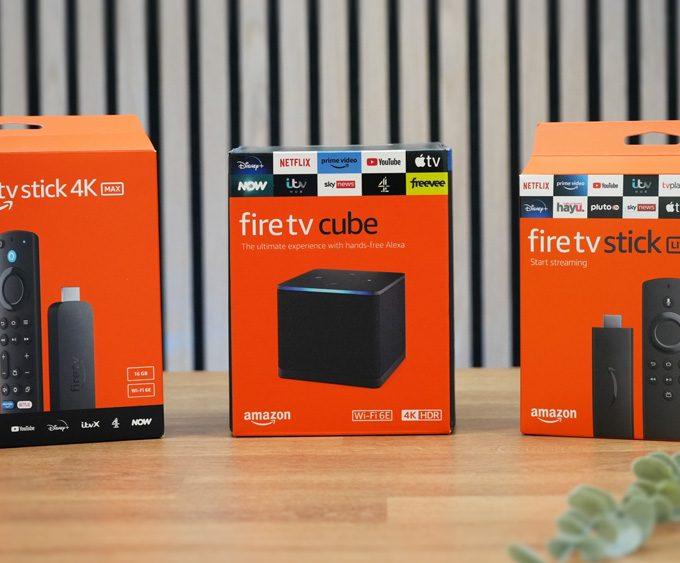
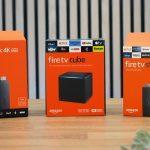
If you’ve recently upgraded to a Firestick 4K Max, these settings are essential to unlock the device’s true power. On the other hand, if you’re still using an older model, these tips will help squeeze the most performance out of your streamer.
👉 Want more Firestick tips? Check out our Device Setup & Optimisation hub for the latest updates and tutorials.
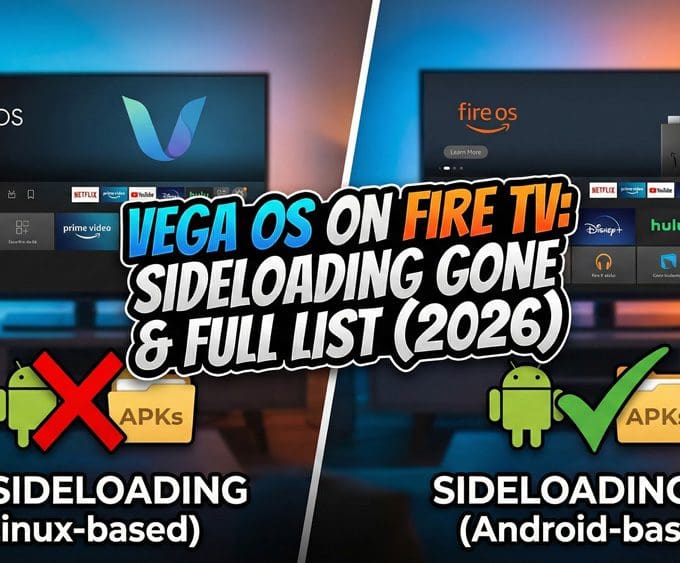
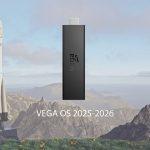
👉 Curious about Amazon’s software changes? Read our coverage on Vega OS — Amazon’s rumoured Fire OS replacement.
Shield TV users: NVIDIA’s latest Shield Experience 9.2.2 firmware includes stability and playback improvements that pair perfectly with these Firestick 4K HDR settings for even smoother streaming.
For more Firestick setup guides and device-optimisation tutorials, visit our Device Setup & Optimisation hub.
Verdict
The Firestick is capable of more than most people realise — but it takes the right setup. As a result, by applying these Firestick 4K HDR Settings 2025, you’ll notice sharper visuals, smoother motion, and better overall stability.
Therefore, if you’re serious about your home theatre experience, spending 10 minutes adjusting these options today is highly recommended. Your next binge-watch session will thank you.
FAQ
Do I need a 4K TV to use these Firestick settings?
Yes. To enjoy 4K HDR content you’ll need a TV that supports Ultra HD and HDR. However, several tweaks, such as Wi-Fi optimisation and cache management, still improve performance even on non-4K TVs.
Will these settings work on Firestick Lite or HD models?
Many of them will. In most cases, Lite and HD users can benefit from Wi-Fi, cache clearing, and calibration, but HDR and Dolby Atmos are exclusive to 4K and 4K Max models.
Should I always leave Match Dynamic Range on?
In most cases, yes. Set Dynamic Range to Adaptive (Match Dynamic Range). It switches between SDR, HDR10, and Dolby Vision automatically for the most accurate picture. On the other hand, if your TV struggles with mode switching, you can disable it.





Leave a comment