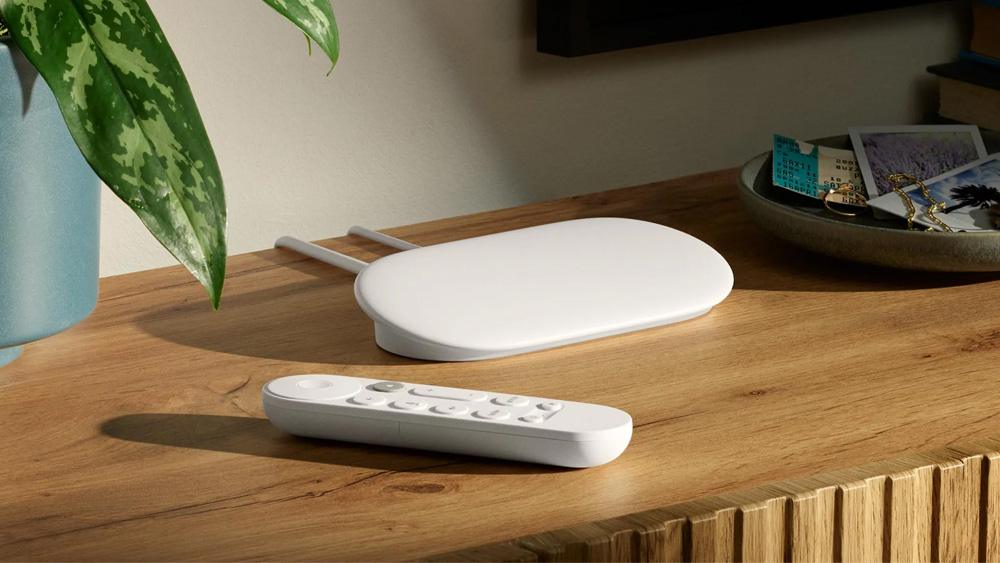
Your step-by-step guide to setting up the Google TV Streamer in 2025 and unlocking the best 4K streaming experience.
Setting up a new streaming device can feel overwhelming. However, this guide will walk you through the complete Google TV setup for 2025. In addition, youβll learn the best tips to optimise your Google TV 4K device for smooth streaming. If youβre comparing devices, check out our Google TV Streamer 4K Review for deeper insights.
For more setup tutorials like this, explore our Device Setup & Optimisation hub, where we cover Google TV, Firestick, and NVIDIA Shield configuration tips.
Setting Up Other Streaming Devices Too?
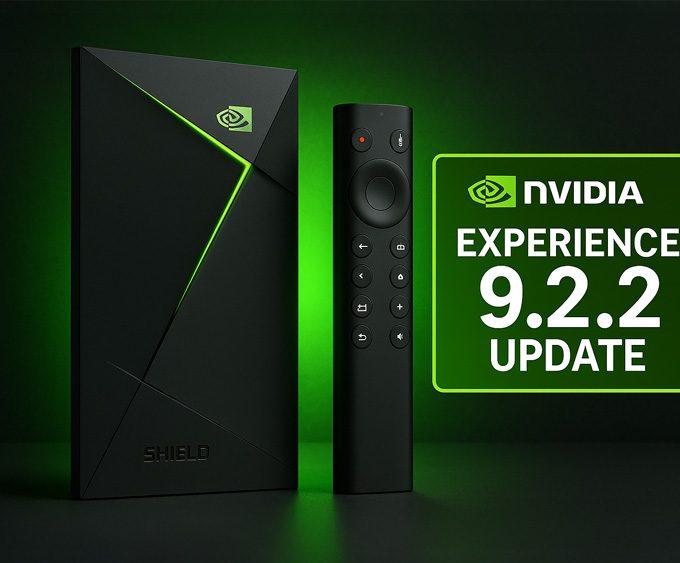
If you also use an NVIDIA Shield TV alongside your Google TV Streamer, make sure itβs running the newest system software. NVIDIA recently rolled out the Shield Experience 9.2.2 update, which adds new accessibility tools, smoother remote handling, and important stability fixesβespecially for apps like Disney+. Updating both devices ensures better performance and a smoother setup experience overall.
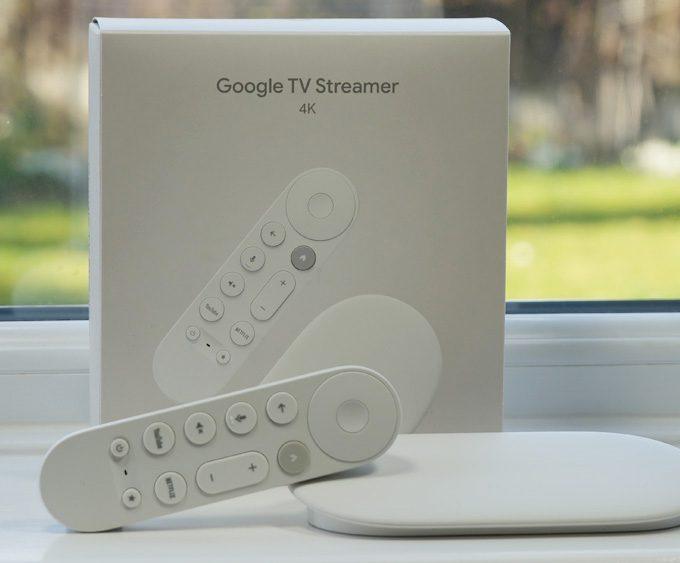
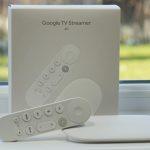
First, unbox your Google TV Streamer 4K. Connect the HDMI cable to your TV and plug in the power adapter. Make sure you use an HDMI port that supports 4K. This way, you get the best resolution and HDR performance.
π For comparison, see our NVIDIA Shield TV Pro Review for another high-end 4K option.
Turn on your TV and select the Google TV HDMI input. Youβll be guided through the setup. Connect to your Wi-Fi network.
Because streaming in 4K requires stability, a strong connection is key. If your router is far away, consider moving it closer or using a mesh system.
π If you also want privacy and region access on Google TV, see our full guide: Proton VPN Free on Firestick & Google TV: The Complete 2025 Setup Guide β it works perfectly on Google TV via the official TV app.
π For more help with connectivity, see our guide on optimising Wi-Fi for 4K streaming devices.
Youβll need a Google account to complete setup. Sign in using your existing account or create a new one. As a result, your apps, subscriptions, and preferences stay in sync.
Google has a full support guide for Google TV setup if you need extra help.
After logging in, check for updates. Google TV often pushes performance and security patches. Therefore, updating ensures smoother playback. It also improves compatibility with apps.
Using a Shield TV as well? NVIDIAβs recent Shield Experience 9.2.2 update
improves responsiveness and stability, making it a good idea to update all your streaming devices during setup.
You can also browse our full Streaming Guides & How-To hub for setup walkthroughs, performance fixes, and advanced optimisation guides.
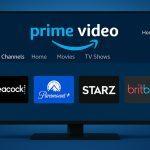
Head to the Google Play Store and download your favourite apps. Netflix, Disney+, and Prime Video are available right away. In addition, you can install music and sports apps.
Open the settings menu. Under βDisplay & Sound,β you can adjust resolution, HDR mode, and surround sound. For the best results, set the resolution to match your TVβs native support (usually 4K UHD).
Google TV works seamlessly with Google Assistant. Use your remote to launch apps, search for shows, or control your smart home devices. On top of that, voice control makes navigation faster.
π If youβre exploring AI assistants, check out our Gemini for Home guide for Googleβs latest smart home technology.
Streaming in 4K requires stable internet and optimised settings. To reduce buffering, keep fewer apps running in the background. In addition, clear cache when apps slow down.
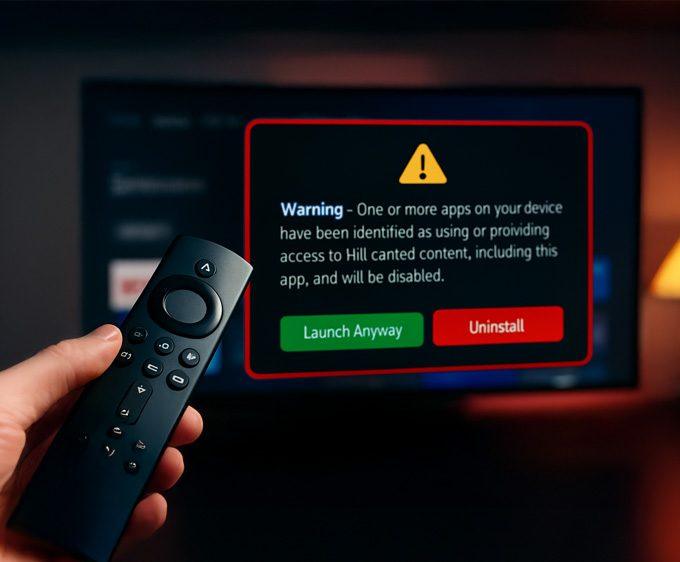
If an app refuses to open on your Firestick, it may not be a performance issue β some Fire TV devices now show a new alert when certain apps are flagged. You can see the exact Firestick warning message and the list of affected apps here: πΒ Firestick Blocks Are Now LIVE: The Exact Warning & Full List of Affected Apps.
π If you prefer a safe, ad-free VPN option for Google TV, Proton VPN Free is one of the only trustworthy free choices with unlimited data. Follow our guide here: Proton VPN Free on Firestick & Google TV: The Complete 2025 Setup Guide.
π You can follow our guide to clear cache and improve Firestick performance. Although it’s for Firestick, many of the same tips apply to Google TV.
Google TV has shortcuts that can boost usability. For example, long-press the Home button to access quick settings. You can also customise the βFor Youβ tab to display only your favourite services.Β
Your Google TV Streamer 4K is now ready for action. With proper setup and a few adjustments, youβll enjoy a smoother and more personalised 4K experience.
For more device-setup tutorials, visit our Device Setup & Optimisation hub.
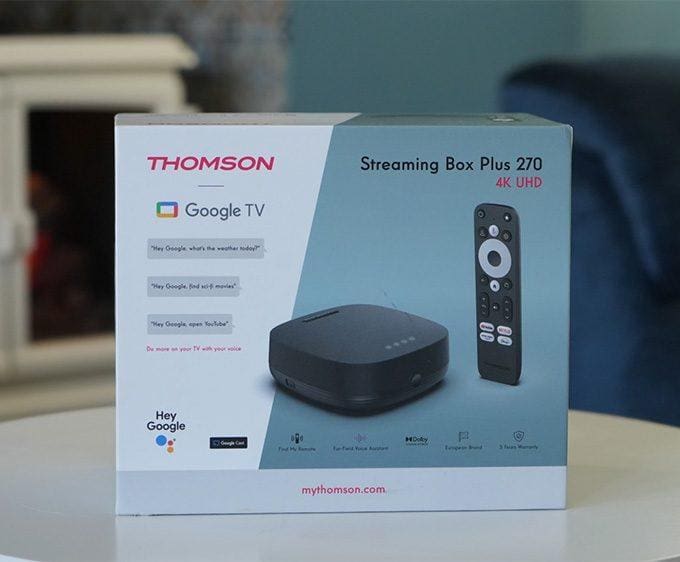
If you want more comparisons, revisit our Google TV Streamer 4K Review or see how it stacks up against the NVIDIA Shield TV Pro. On the other hand, if you’re looking for a more budget-friendly option, check out our Thomson Streaming Box Plus 270 Review.
To set up your Google TV Streamer 4K, connect it to your TV with HDMI, power it on, join Wi-Fi, sign in with your Google account, and install your favourite apps.
For the best 4K experience, itβs essential to use a strong Wi-Fi connection. Additionally, you should update your software regularly to ensure optimal performance. Moreover, adjusting your display and sound settings can significantly enhance your viewing experience.
Indeed, Google TV comes with Google Assistant integrated into the system. Consequently, you can utilize voice commands from the remote to effortlessly open apps, search for shows, and control your smart home devices.
The Google TV Streamer 4K offers excellent value with smooth 4K streaming. However, the NVIDIA Shield TV Pro is a premium option with more power and features for advanced users.
The Thomson Streaming Box Plus 270 is a strong budget-friendly option. It supports 4K streaming at a lower price, making it a good alternative for casual viewers.
Image credit: Google
Tanya is the founder of unboxd.tech, where she shares guides, reviews, and tips on streaming devices and apps. She focuses on making streaming simple with practical fixes and smart home insights.
The Firestick 2026 Setup Guide is here to make your life easy....
ByTanya4 months AgoThe Amazon Fire TV Stick is one of the most popular streaming...
ByTanya9 months Ago
Leave a comment