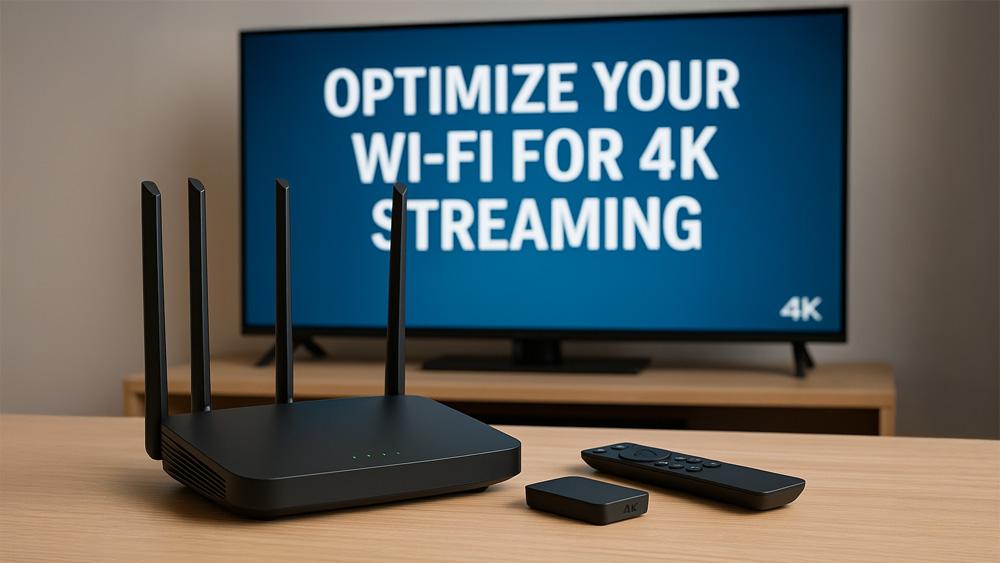
Simple Wi-Fi setup for streaming — follow these 4K streaming Wi-Fi tips to eliminate buffering, boost speed, and enjoy flawless playback on any device.
If you want smooth 4K playback, your Wi-Fi setup for streaming is just as important as the device you use. Slow speeds or weak signals often cause buffering, pixelation, or app crashes. The good news? With a few smart adjustments, you can unlock stable, high-quality playback across all your streaming devices.
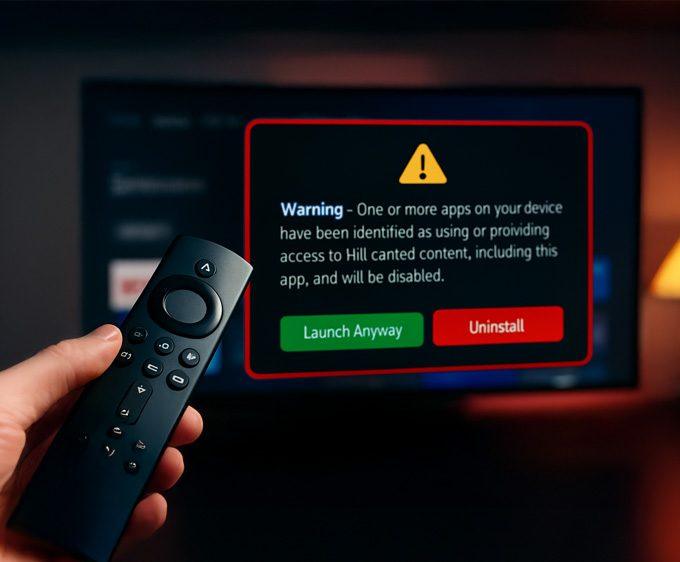
If an app refuses to open even with strong Wi-Fi, it may not be a network problem — some Fire TV devices now show a new alert when apps are flagged. You can see the exact Firestick warning message and which apps are affected here: 👉 Firestick Blocks Are Now LIVE: The Exact Warning & Full List of Affected Apps.
This guide shares the most effective 4K streaming Wi-Fi tips so you can enjoy your shows without interruption.
If you also want a free, safe way to add extra privacy and stabilise streaming on Firestick or Google TV, take a look at our Proton VPN Free on Firestick & Google TV guide — it’s one of the few trusted VPNs that works smoothly on streaming devices.
For more device-fix tutorials like this, explore our Troubleshooting & Performance hub, where we cover Firestick and Google TV fixes, Wi-Fi optimisation, and speed-boosting guides.
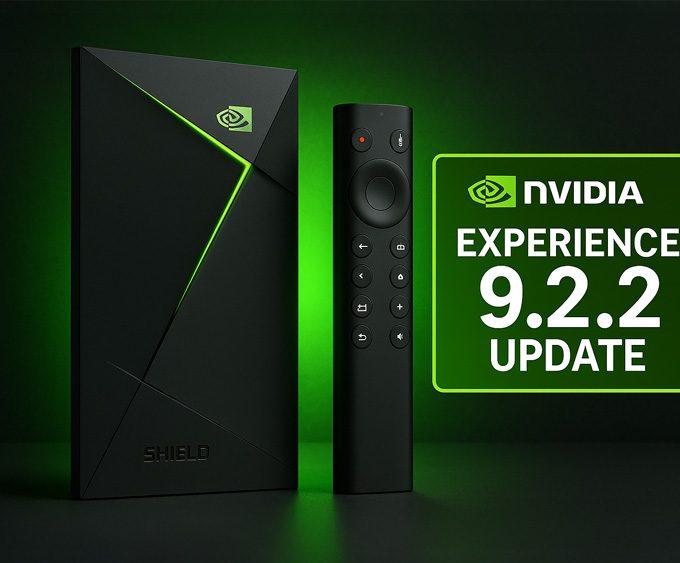
Using Devices Like the NVIDIA Shield TV? Update Those Too. Your Wi-Fi setup makes a huge difference, but so does keeping your streaming devices updated. If you use an NVIDIA Shield TV alongside your Firestick or Google TV Streamer, be sure it’s running the latest firmware. NVIDIA recently released the Shield Experience 9.2.2 update, which improves remote responsiveness, adds new accessibility tools, and fixes key stability issues — including the Disney+ audio dropout bug. Combining proper Wi-Fi configuration with updated device software delivers the smoothest 4K streaming experience.
4K video requires more bandwidth and stability than HD. Most services, like Netflix, recommend at least 15–25 Mbps per stream. But even with fast internet, poor Wi-Fi setup can ruin your experience. Weak signals, interference, and overcrowded networks all reduce quality. Optimising your Wi-Fi for 4K streaming ensures your Firestick, Google TV, or NVIDIA Shield TV delivers top performance.
If your streaming device is far from your router, consider a Wi-Fi mesh system for stable coverage.
Most modern routers support both 2.4GHz and 5GHz bands.
Whenever possible, connect your streaming box to the 5GHz band for smoother playback.
Smart homes are packed with connected gadgets, and many compete for bandwidth. To avoid slowdowns:
For users who also want secure, private streaming — especially on Firestick or Google TV — our Proton VPN Free setup guide explains how to install a safe, audited VPN without slowing down your connection.
You can also browse our full Streaming Guides & How-To hub for setup tutorials, performance fixes, and advanced streaming guides.
Old routers often struggle with today’s demands. If yours is over 4 years old, upgrade to a Wi-Fi 6 or Wi-Fi 6E router. These handle multiple devices better, increase speed, and improve overall reliability.
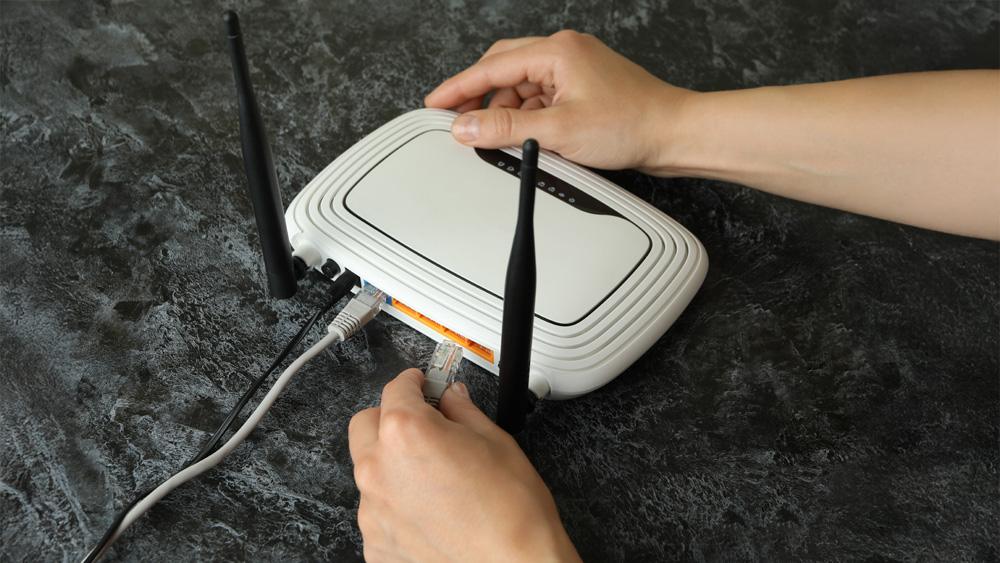
A wired Ethernet connection beats Wi-Fi every time. Many 4K devices, including the NVIDIA Shield TV Pro and Google TV Streamer 4K, support Ethernet adapters. Going wired eliminates interference and ensures maximum stability.
Your Wi-Fi setup for streaming makes the difference between constant buffering and flawless 4K playback. From router placement to wired connections, these 4K streaming Wi-Fi tips help you get the most out of your devices.
Using a Shield TV too? Make sure you’re running NVIDIA’s latest Shield Experience 9.2.2 update — it includes stability improvements that go hand-in-hand with good Wi-Fi configuration for smooth 4K playback.
For more troubleshooting guides covering Firestick, Google TV, and Shield TV, visit our Troubleshooting & Performance hub.
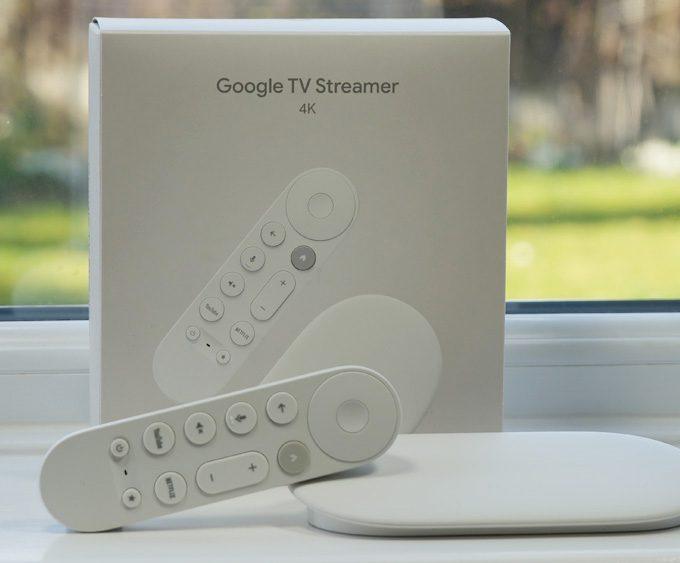
👉 Ready to see which streaming device pairs best with your upgraded Wi-Fi? Check out our reviews of the Google TV Streamer 4K and the powerful NVIDIA Shield TV Pro. For budget buyers, the Onn 4K Plus Review is also worth a look.
Most streaming services recommend at least 15–25 Mbps per stream for 4K playback. Faster speeds ensure smoother performance, especially if multiple devices are connected.
5GHz Wi-Fi is usually better for 4K streaming because it provides faster speeds and less congestion. However, it has shorter range, so placement of your router matters.
Yes. A wired Ethernet connection provides more stability and speed than Wi-Fi. If possible, connect your streaming device directly to your router with Ethernet.
You can reduce buffering by placing your router in a central location, using 5GHz Wi-Fi, limiting bandwidth-heavy devices, and keeping your router and streaming apps updated.
Tanya is the founder of unboxd.tech, where she shares guides, reviews, and tips on streaming devices and apps. She focuses on making streaming simple with practical fixes and smart home insights.
If your streaming device keeps freezing or lagging, sometimes the best fix...
ByTanya4 months AgoIf your Firestick, Fire Cube, or Fire TV device keeps showing the...
ByTanya4 months AgoIf your Firestick feels sluggish or apps keep crashing, learning how to...
ByTanya4 months Ago
Leave a comment