THE OFFICIAL UNBOXD POINTER GUIDE
Some TV apps are designed for touchscreens. unboxd Pointer helps you reach on-screen controls using your Fire TV remote — without a phone, computer or router changes.
OFFICIAL DOWNLOAD · FREE FIRE TV APP · v1.0.5
⬇ Download unboxd Pointer APKInstallation guide
Downloader code: 4194688. Compatible Fire OS devices only; not Vega OS. Installation and setup stay on your Fire TV.

Complete the one-time connection inside the app.
Double-press to start mouse mode. Press once to stop it.
Current release: v1.0.5. Download the official APK above or enter 4194688 in Downloader. Already installed? See Updating Pointer below. The official download address stays the same.
START HERE
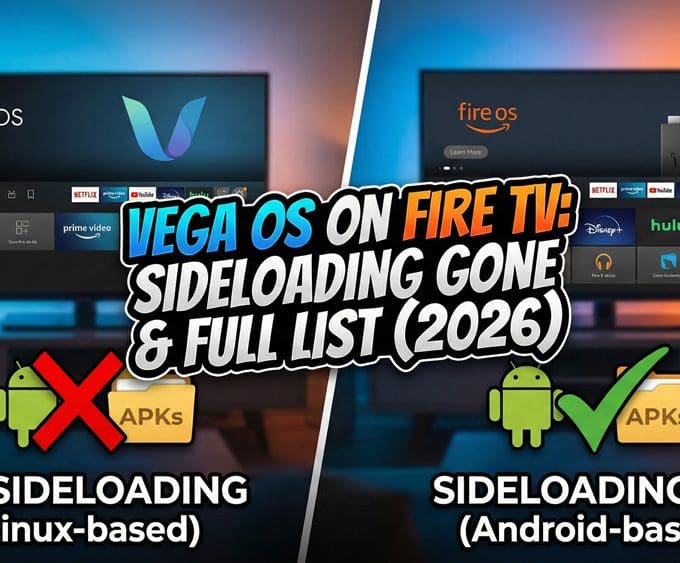
unboxd Pointer is designed for Android-based Amazon Fire TV devices running Fire OS, with a remote that has a Play/Pause button. Vega OS is not supported.
What we have tested with v1.0.5 — updated 8 November 2026:
These results apply to the devices tested, not every model or firmware version. Some apps and controls have limitations; see the remote-controls notes below.
STEP-BY-STEP SETUP
Complete all five steps on your Fire TV. Menu names vary slightly by model and Fire OS version. If Pointer is already installed, use the update instructions instead of uninstalling it.
Install Downloader from the Amazon Appstore if you do not already have it. Open Settings → My Fire TV → Developer Options. If Developer Options is hidden, open About, highlight the device name, press Select seven times, then press Back.
Turn ADB Debugging on. Under Install Unknown Apps, allow Downloader. Older Fire OS may show a single Apps from Unknown Sources switch instead.
Open Downloader and enter 4194688 in its address/code box, then select Go. Alternatively, use the official download button at the top of this page.
The file comes from unboxd.tech/unboxdpointer/unboxd-pointer.apk. When the Fire TV installer opens, choose Install, then Open.
Open unboxd Pointer → Setup. If the app says ADB Debugging is off, use its settings button, enable it and return.
Keep the TV connected to Wi-Fi or Ethernet. Pause any VPN app on this Fire TV for setup, then choose Set up Pointer. You do not need a computer, phone, router change or a separate helper app.
Approve the Fire TV Connection request with OK. Pointer uses Android’s VPN permission for a temporary connection inside this TV; it is not an outside VPN service or subscription.
Then approve Allow USB debugging? with OK or Allow. The wording may include Always allow from this computer: this request comes from Pointer on your TV, not a PC. Choosing Always allow remembers that connection. Only approve prompts you initiated through Pointer.
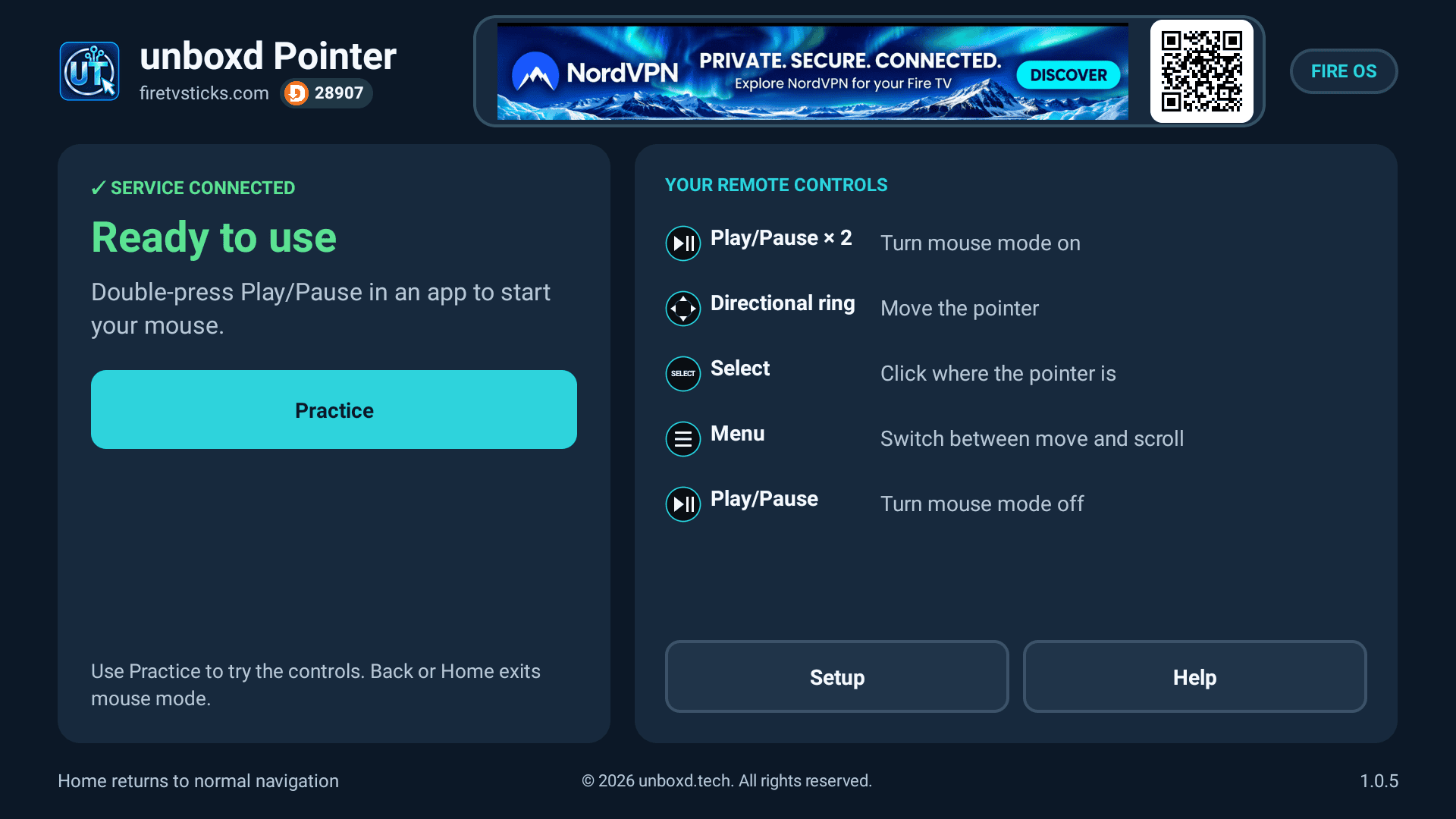
Wait for the green SETUP COMPLETE — Pointer is ready! confirmation. Back on the main screen, look for SERVICE CONNECTED — Ready to use. The temporary setup connection closes when finished; reconnect your usual VPN now.
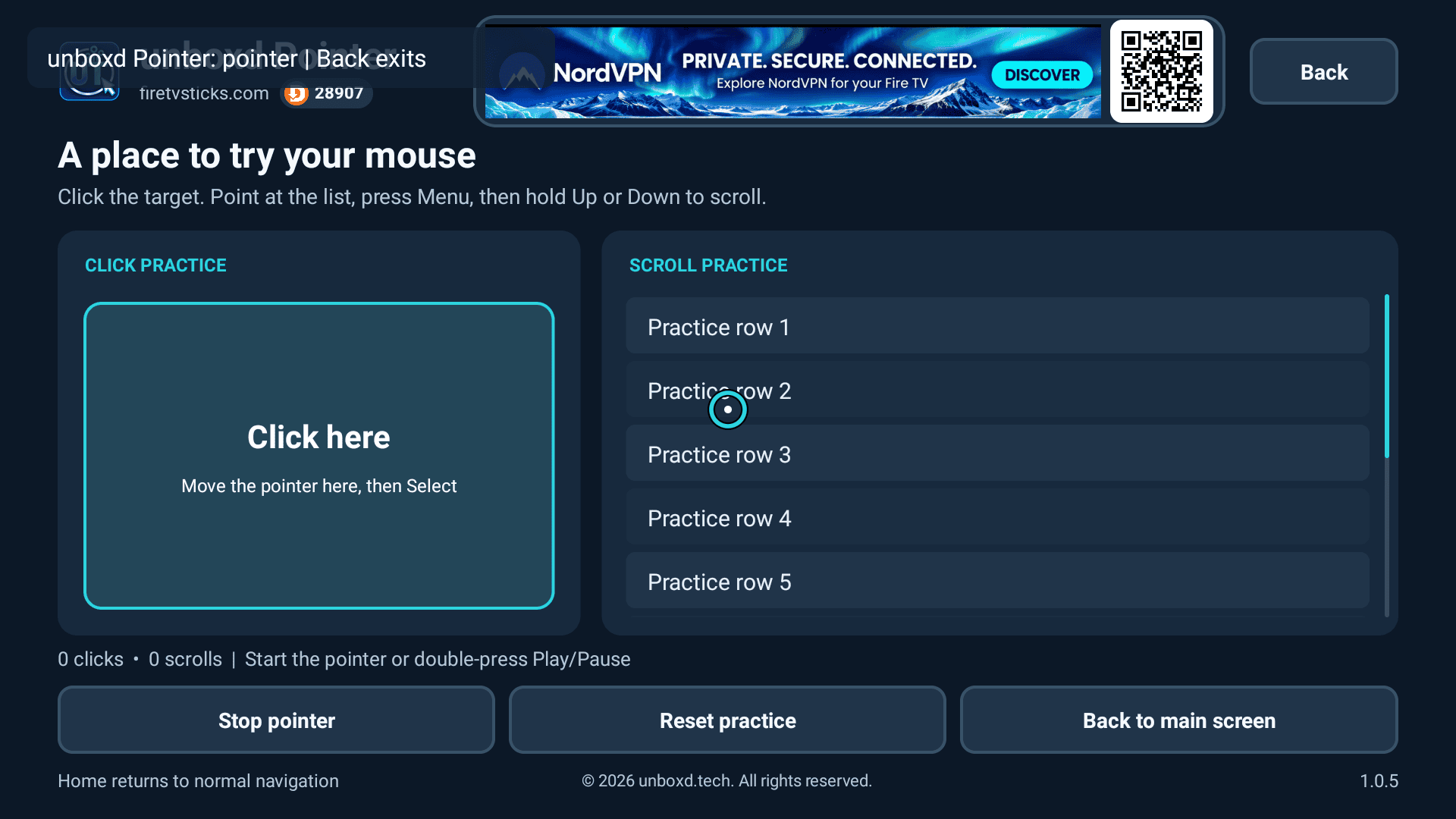
Choose Practice. Start the pointer or double-press Play/Pause, move onto Click here and press Select. Point inside the practice list, press Menu, then hold Up or Down to scroll. Press Menu again to return to moving. Back exits pointer mode; use Back to main screen when finished.

If setup does not finish: make sure your Fire TV remote is awake, ADB Debugging is on and your VPN is paused. Return to Setup and choose Try again. The troubleshooting section below explains cancelled or missing prompts.
You can check for and install future updates directly from Pointer. No Appstore listing, computer or phone is needed.
“No newer update is available.” means the official download does not contain a newer version than the one installed. Internet access is required to check and download an update.
Keep your settings: install the official update over the existing app. Do not uninstall Pointer first.
Older Fire OS 5 installations: if an earlier version cannot open the installer from inside Pointer, install v1.0.5 once using Downloader code 4194688. This installs the repaired updater; later releases can use the in-app route.
The permanent download is always unboxd-pointer.apk at unboxd.tech/unboxdpointer/. You do not need to find a different filename for each release.
REMOTE CONTROLS
Once the service says it is ready, you can use the pointer while you are in an app that needs it.
Quickly press Play/Pause twice to show the pointer. Press Play/Pause once to turn it off.
Menu switches between moving and scrolling. Point inside the area you want to scroll, press Menu, then use Up or Down. Press Menu again to move the pointer. Back or Home exits pointer mode.
Tip: Use Practice first. Home, sleep and screensaver entry switch the pointer off. The two Play/Pause activation presses may also affect playback in the app you are using.
Current limits: on Fire OS 8, compatibility mode works with controls exposed by the other app; some custom-drawn controls may not respond. Long-press, dragging and native mouse hover are not available in this version. Pointer is not a guarantee that every touchscreen app will work on a TV.
VPN & CONNECTIONS
Pause it for the one-time setup, then reconnect it. Pointer uses a temporary local connection through Android’s VPN permission to complete setup on this TV. Only one VPN connection can be active at a time, so your normal VPN protection is paused during that step.
This setup connection stays inside the TV. There is no external VPN server, paid subscription or router change.
Pause the VPN only for the setup step and reconnect it afterwards. Pointer controls work offline once set up; downloading the APK, checking for updates and online content still need an internet connection.
TROUBLESHOOTING
Check ADB Debugging under Settings → My Fire TV → Developer Options. Pause your VPN, wake the Fire TV remote, return to Pointer → Setup and choose Try again. Approve the Connection request and any Allow USB debugging prompt. If a computer or another ADB tool is currently connected to this TV, disconnect that tool before retrying the on-TV setup. Reconnect your usual VPN once Pointer is ready.
Open Settings → My Fire TV → About. Highlight your Fire TV device name and press the remote’s centre Select button seven times. Press Back. Developer Options should now appear. Some menu labels differ by Fire OS version.
Open unboxd Pointer and confirm the green ready indicator first. Then return to the app you want to use and press Play/Pause twice in quick succession. If the connection has dropped, reopen Pointer and rerun the check.
This is intended behaviour. Pressing Home exits pointer mode so that normal Fire TV navigation is restored. Use the double Play/Pause shortcut again when you need the pointer.
unboxd Pointer is designed for Fire OS, not Vega OS. The ADB-based setup and Android APK are not supported on Vega devices.
Return to Setup and choose Try again. Keep the remote awake and allow the on-screen connection request first. A previously approved debugging connection may not ask again: check for the green ready state. If setup still fails, open Setup help and use the support form with the exact message shown. Do not keep approving unrelated debugging requests.
Try the click target and list in Practice first. For scrolling, point inside the list, press Menu, then hold Up or Down. If Practice works but another app does not, that app may not expose compatible controls. This is particularly relevant to Fire OS 8 compatibility mode. Long-press, dragging and native mouse hover are not supported.
Download a fresh copy using code 4194688 or the official button above; an incomplete download can fail to install. Check that Downloader has permission under Install Unknown Apps, or enable the older Apps from Unknown Sources setting. Do not uninstall your current Pointer just to update it. If the official file still fails, send your Fire TV model, Fire OS version and the exact installer message through the support form.
See Updating unboxd Pointer above. Allow Pointer to install apps if Fire TV asks, then check again. On an affected older Fire OS 5 installation, use Downloader code 4194688 once to install v1.0.5 over the existing app. That release contains the repaired updater.
Still stuck? Open Help → App status & support in Pointer. Note your Fire TV model, Fire OS version, Pointer version and the exact error. Mention whether clicking and scrolling work in Practice. Use the dedicated form below; do not send passwords, pairing codes or debugging keys.
Tell us your device, app version and the exact error. Please don’t send passwords or ADB pairing codes.

OFFICIAL & ORIGINAL
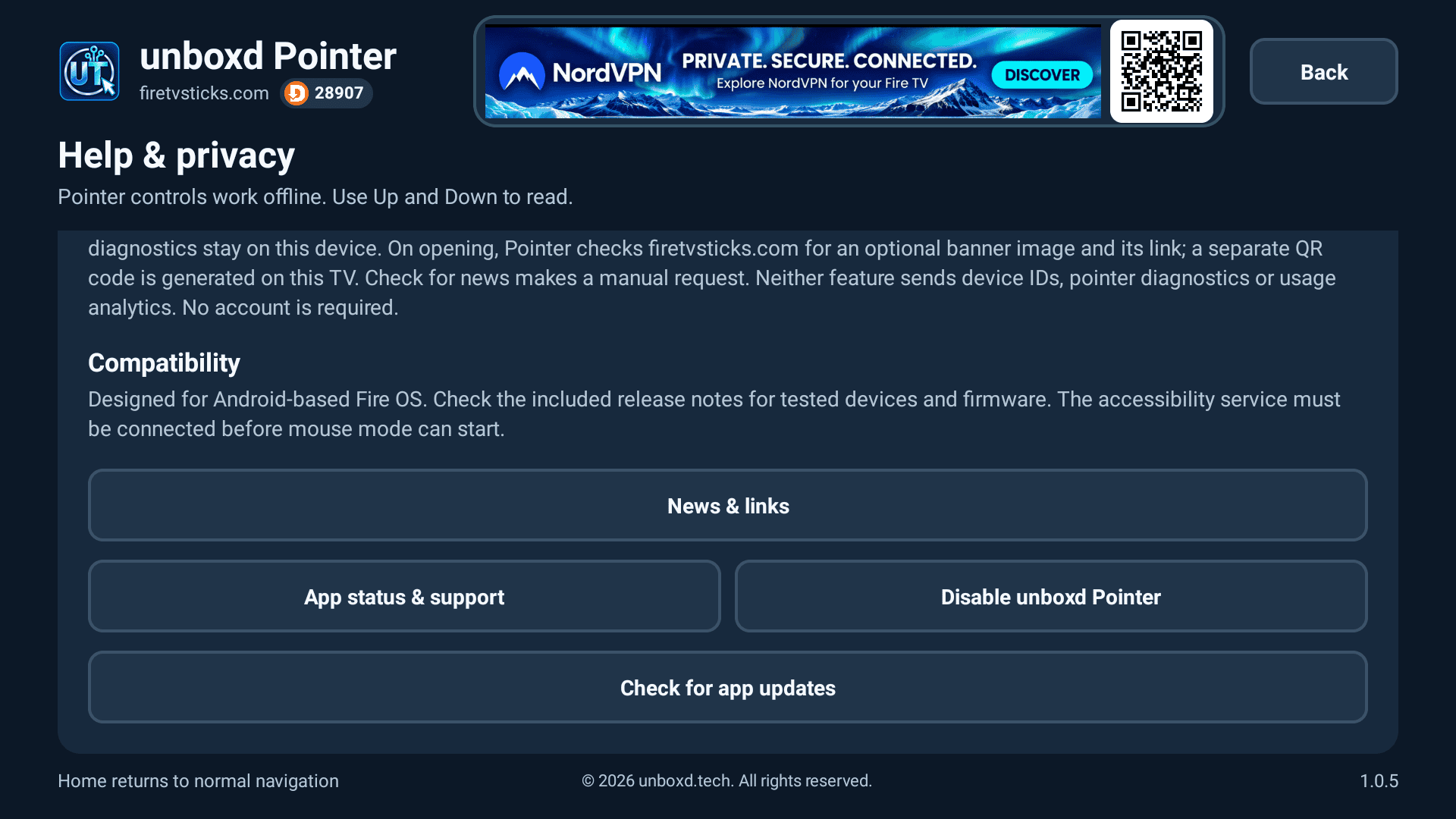
unboxd Pointer is an original app from unboxd.tech. Use the official APK linked on this page or Downloader code 4194688. Avoid modified or rehosted copies. The 28907 banner shown inside Pointer opens the wider Firetvsticks download centre; 4194688 is the direct code for Pointer.
© unboxd.tech · Guide reviewed 8 November 2026 for unboxd Pointer v1.0.5. Compatibility notes describe the devices actually tested and may evolve with later releases.