







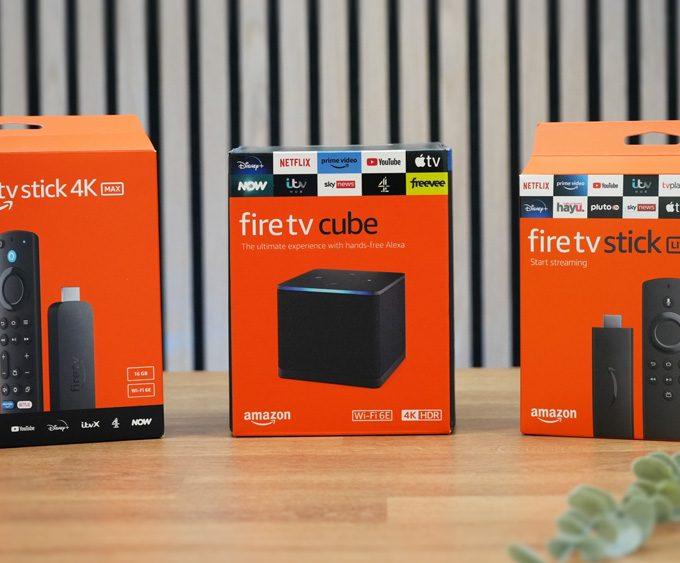
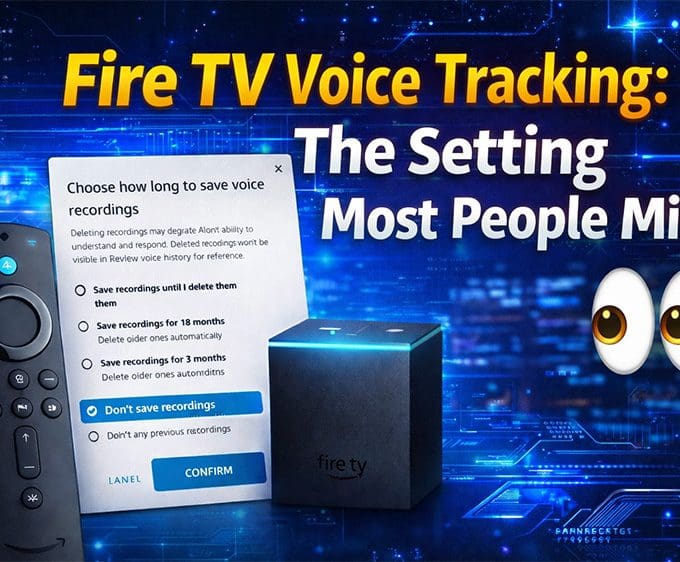





Voice control now comes as standard on most streaming devices. That convenience has also created confusion, especially around Fire TV voice tracking.
Some people believe Fire TV listens all the time.
Others think Amazon gives no way to stop voice recordings.
Neither is fully correct.
The truth depends on which Fire TV device you use and which settings you change. Once you understand those differences, you can control voice data without breaking features you rely on.
This guide is part of our Streaming Guides & How-To series, where we break down how streaming devices really work, without myths or panic.
Fire TV Voice Tracking Isn’t What Most People Think
The idea that “Fire TV is always listening” gets repeated constantly online, but it’s not accurate for every Fire TV device.
Whether voice tracking is happening — and how much control you have — depends entirely on which Fire TV setup you’re using.
Understanding that distinction is the key to protecting your privacy without breaking features you actually want to use.
Two Very Different Fire TV Voice Setups
Fire TV Devices with Hands-Free Voice Control
Some Fire TV models, such as the Fire TV Cube and certain Fire TV smart televisions, include microphones built directly into the device itself.
These models support hands-free voice control, which means they listen locally for the Alexa wake word so they know when to activate. This listening happens on the device and does not automatically send audio to Amazon’s servers. Audio is only uploaded after activation.
This behaviour is documented by Amazon and is similar to how smart speakers work.
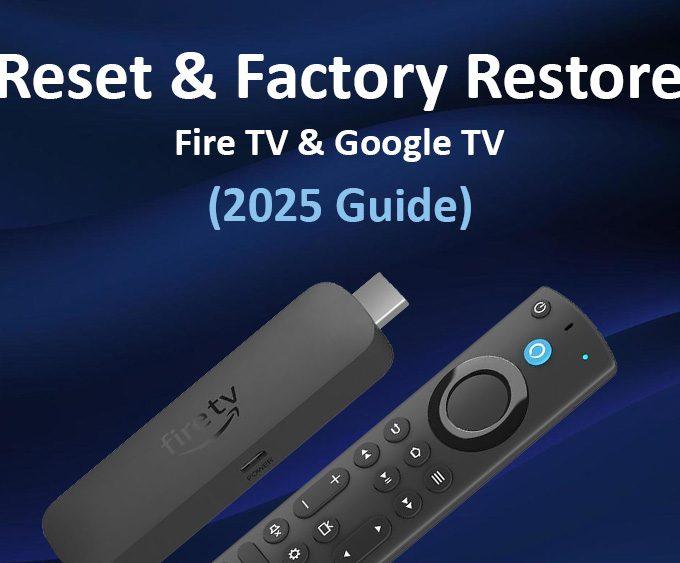
Fire TV Stick with Alexa Voice Remote
Fire TV Sticks work very differently.
The Alexa Voice Remote does not listen for a wake word. Instead, its microphone is only powered while the microphone button is physically pressed.
If the button isn’t pressed, the microphone is not active.
No button press means no listening.
This difference is crucial — and it’s why Fire TV Stick users don’t experience the same type of accidental background recordings seen on hands-free devices.
If you’re setting up a Fire TV Stick for the first time, our setup and optimisation guides in this category walk through these differences in more detail.
Is the Fire TV Remote Listening Without the Button?
For Fire TV Stick users, there is no evidence that the Alexa Voice Remote listens or records audio unless the microphone button is pressed.
This isn’t just an assumption — you can verify it yourself.
If the remote were passively listening, you would see unexpected or accidental recordings appear in your Alexa voice history. In practice, recordings only appear when voice commands are deliberately used.
That behaviour lines up with the remote’s hardware design and with what users see inside Alexa Privacy settings.
What Actually Gets Recorded When You Use Voice
When you press the microphone button on a Fire TV remote, your voice command is recorded and sent to Amazon’s servers so it can be processed. By default, those recordings may be stored in your Alexa account.
A recording can include the full command or partial phrases captured during the button press. This is why the real privacy question isn’t whether Fire TV is “spying”, but what happens to those recordings after they’re created.
That’s where most guides fall short.
Reviewing and Deleting Voice Recordings (Most Guides Get This Wrong)
If you want to see exactly what Alexa has stored, open the Alexa app or access your Amazon account through a web browser.
In the Alexa app, open the menu, go to Alexa Privacy, and select Review Voice History.
On the Amazon website, navigate to Manage Your Content and Devices, open Privacy Settings, then Alexa Privacy, and choose Review Voice History.
From here, you can view each recording, listen to it, delete individual entries, or clear everything at once.
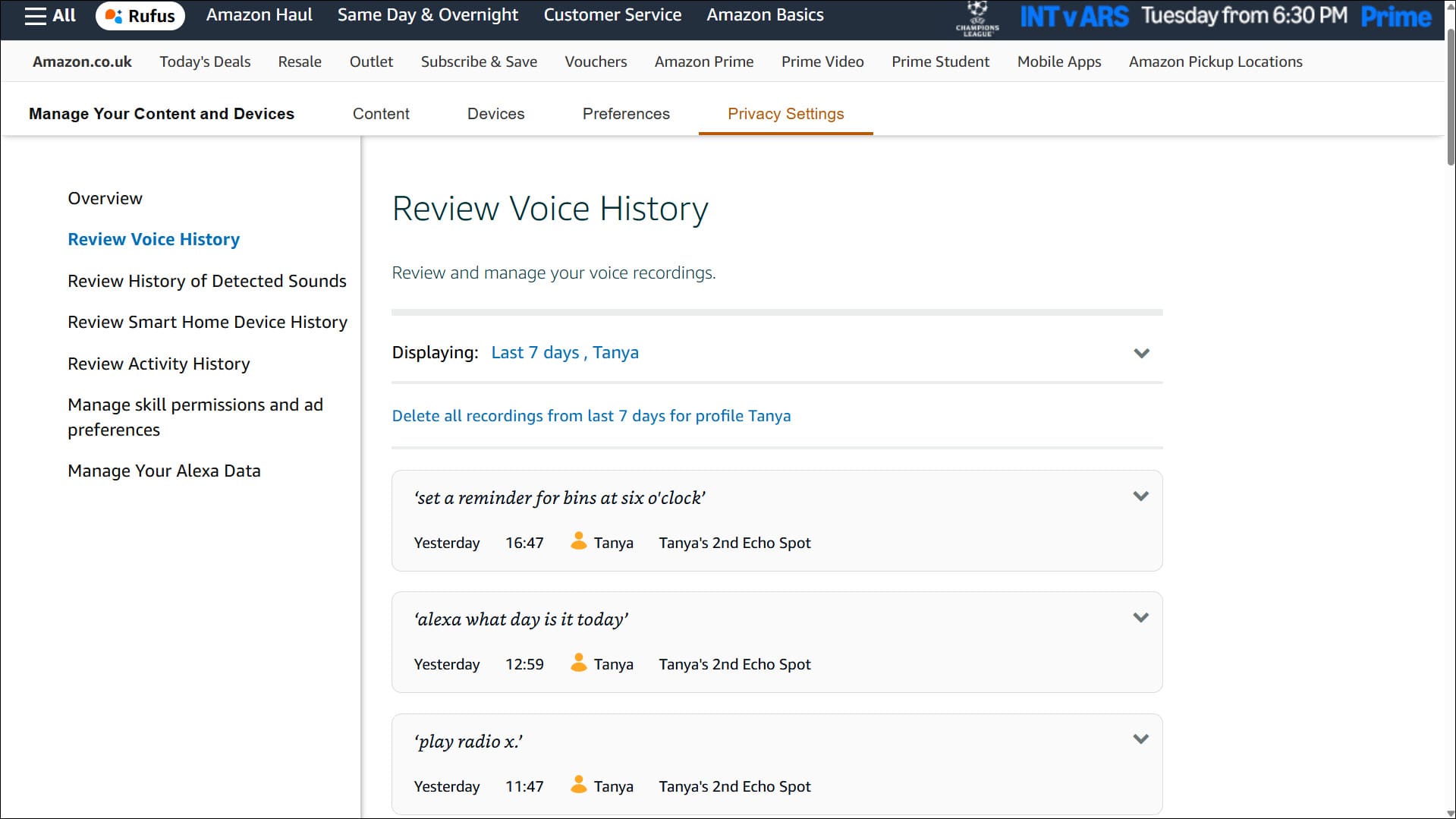
So far, this is where most tutorials stop — but this is not the most important setting.
The Alexa Setting Most People Miss
To fully control Fire TV voice tracking, go back to Manage Your Alexa Data.
Open Voice recordings, then select Choose how long to save recordings. Here, you’ll see an option labelled “Don’t save recordings.”
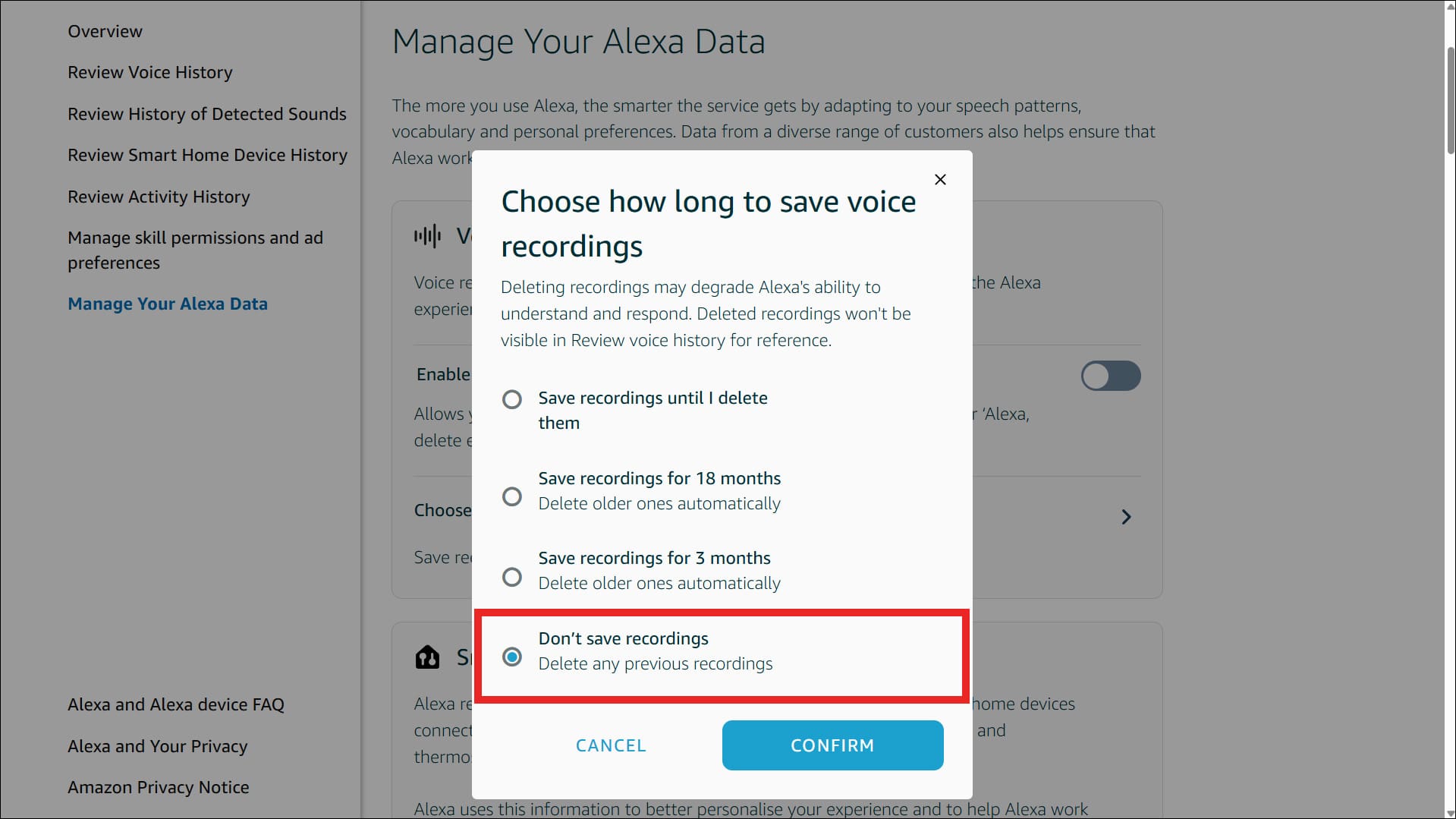
When this option is enabled, any existing voice recordings are deleted and future voice recordings are no longer stored in your account. Alexa will still briefly process audio after activation so it can respond, but nothing is retained in your voice history.
This is the closest you can get to completely stopping voice data from being saved while still keeping voice features available.
Amazon explains this behaviour in its official Alexa privacy documentation, which you can read here.
Does a VPN Help with Fire TV Privacy?
A VPN does not stop Alexa voice recording after you press the button, but it does protect the rest of your network traffic.
Using a VPN on Fire TV encrypts your connection, hides your IP address, and prevents your internet provider from monitoring streaming activity. This is particularly useful when using streaming apps, sideloaded apps, or public Wi-Fi networks.
For readers who want an extra layer of privacy on their streaming devices, I personally use and recommend NordVPN.
It doesn’t stop voice recording when you press the microphone button, but it does encrypt your connection, hide your IP address, and protect your overall streaming activity on Fire TV and other devices.
You can check out my recommended VPN here:
👉 NordVPN – My Recommended VPN for Streaming





Leave a comment