

Amazon has recently intensified its restrictions on third-party applications, yet one powerful app continues to stand the test of time. It remains entirely ad-free, has garnered years of trust, and provides you with unparalleled control over your media. That app is Kodi. In this comprehensive guide, you will discover precisely how to install Kodi Fire TV on almost any Fire TV device, following a safe and correct step-by-step process. Importantly, we’ll also cover one crucial exception to be aware of. Let’s delve in!
What Kodi Actually Is (And Why It Still Works)
Before changing any settings, it’s important to understand what Kodi actually is.
Kodi does not come with pre-loaded content. It’s a powerful media player platform that lets you play local media, stream content using official and community add-ons, or build a fully custom setup that suits your needs.
Crucially, Kodi does not host, store, or link to pirated content. It’s simply the software framework. Any media you access comes from add-ons that you choose to install separately.
That distinction is why Kodi hasn’t been affected by Amazon’s recent app blocks. Kodi follows Amazon’s rules. It doesn’t scrape streams, bundle unauthorised content, or bypass system protections. As a result, it has remained supported and relevant for years.
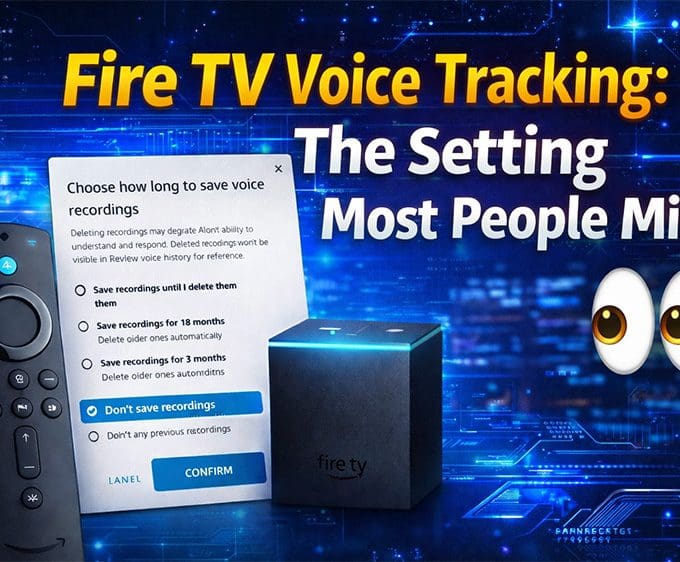
Some users worry that installing third-party apps like Kodi affects Fire TV voice tracking or Alexa privacy. It doesn’t. Voice features on Fire TV are controlled separately at the account and device level, not by installed apps. Kodi has no access to Alexa voice data or microphone recordings. If you want a clear breakdown of how Fire TV voice tracking actually works — including when audio is recorded and how to turn recording storage off entirely — we explain it step by step here: Fire TV Voice Tracking: The Setting Most People Miss.
Installing Kodi is still quick and simple. You don’t need a computer or technical experience, and the process takes less than five minutes. The only difference is that Kodi isn’t listed in the Amazon Appstore, so it must be sideloaded on supported Fire TV devices.
Kodi is completely legal software. It does not include content, does not host streams,
and does not modify Fire TV system files. Any media you access comes from add-ons you
choose to install separately.
Important Fire TV Device Limitation (Read This First)
Not all Fire TV devices behave the same way anymore, and this is important to understand before you start.
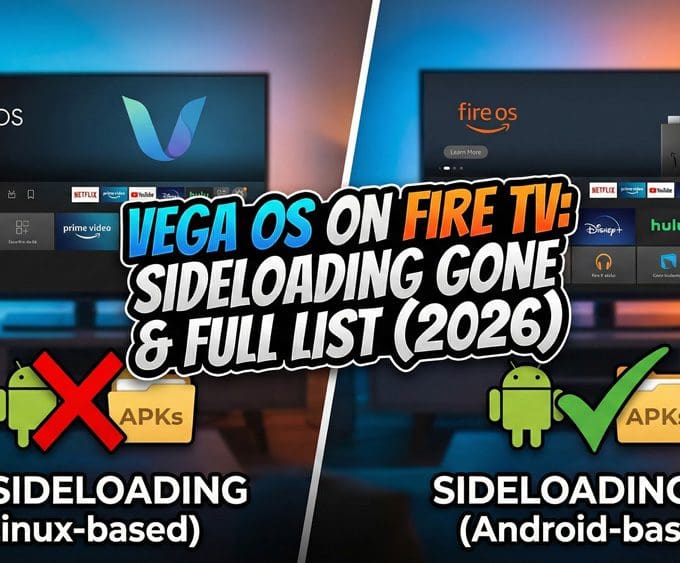
Some newer Fire TV models do not support sideloading. If your device runs Amazon’s
Linux-based Vega OS, Android APK apps like Kodi cannot be installed.
Amazon now uses a two-tier Fire TV strategy. Some devices still run Fire OS (Android),
while others use Linux-based Vega OS. For the full device list and sideloading status,
see our breakdown of Vega OS Fire TV: Sideloading Gone & Full List (2026).
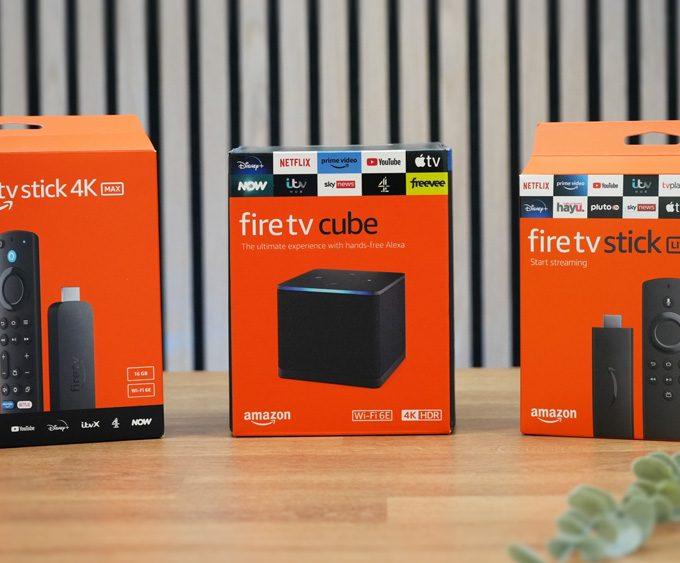
Supported vs Unsupported Devices
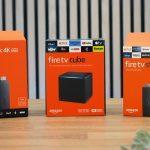
- ❌ Fire TV Stick 4K Select — does not allow Developer Options or sideloading
- ✅ Fire TV Stick 4K Max (2nd Gen)
- ✅ Fire TV Stick 4K Plus
- ✅ Fire TV Cube (3rd Gen)
- ✅ Fire TV televisions running Fire OS
If your device supports Developer Options, you’re good to continue.
Step 1: Install Downloader
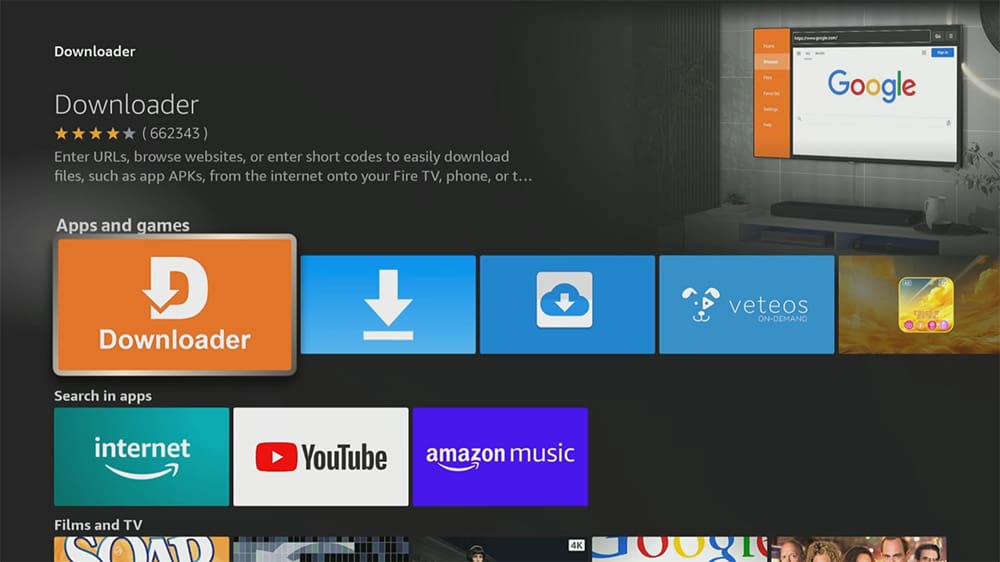
To install apps outside the Amazon Appstore, you’ll need Downloader.
- From the Fire TV home screen, select Find
- Choose Search
- Type Downloader
- Select the orange Downloader app
- Click Get or Download
- Open Downloader and allow file access when prompted
This permission is required so apps can install correctly.
Step 2: Enable Developer Options
Next, you’ll allow Downloader to install apps.
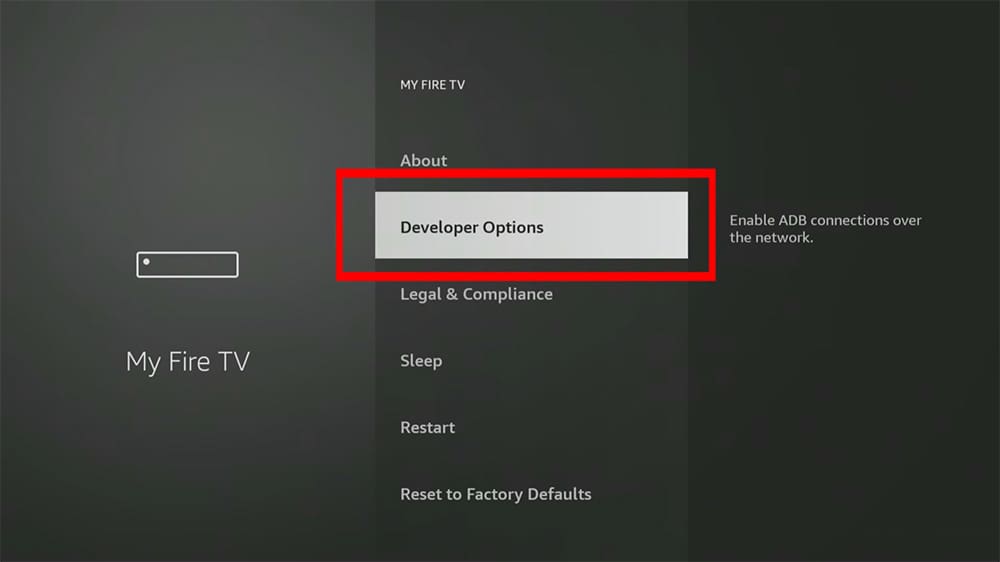
- Go to Settings
- Select My Fire TV
- Choose Developer Options
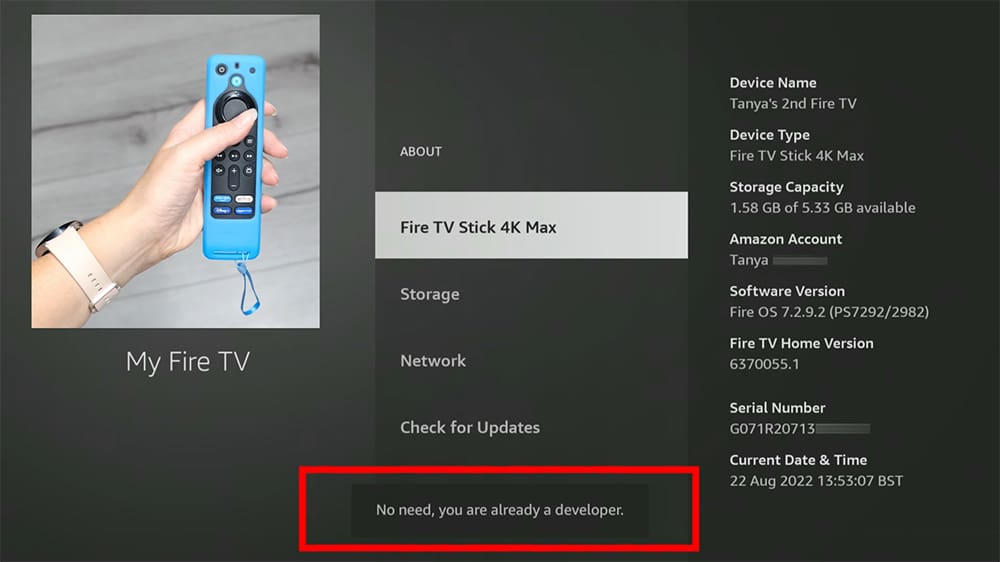
If you don’t see Developer Options:
- Select About
- Highlight your Fire TV device name
- Press Select on your remote 7 times
- You’ll see a message confirming developer access
Now:
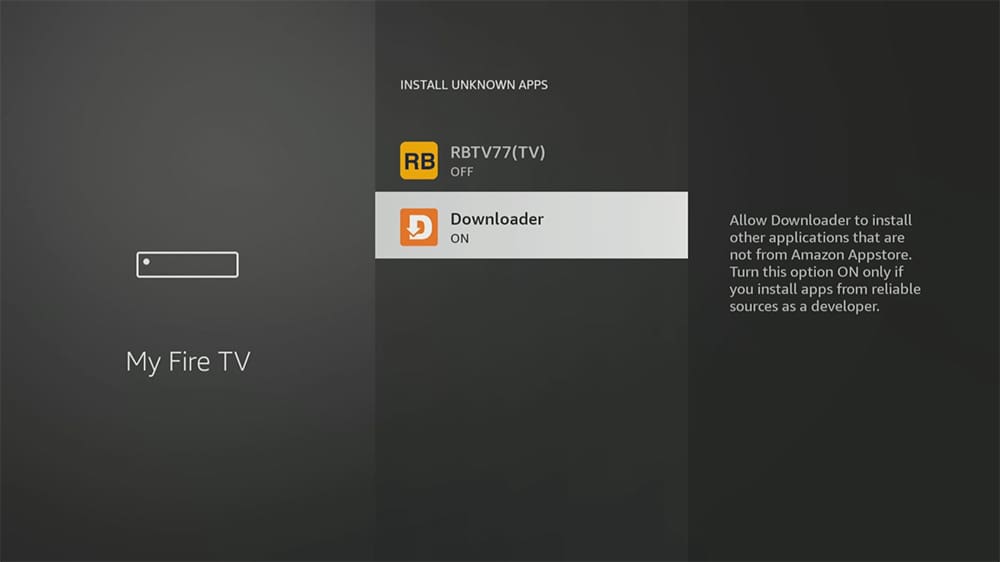
- Open Developer Options
- Select Install Unknown Apps
- Turn Downloader to ON
Your Fire TV is now ready.
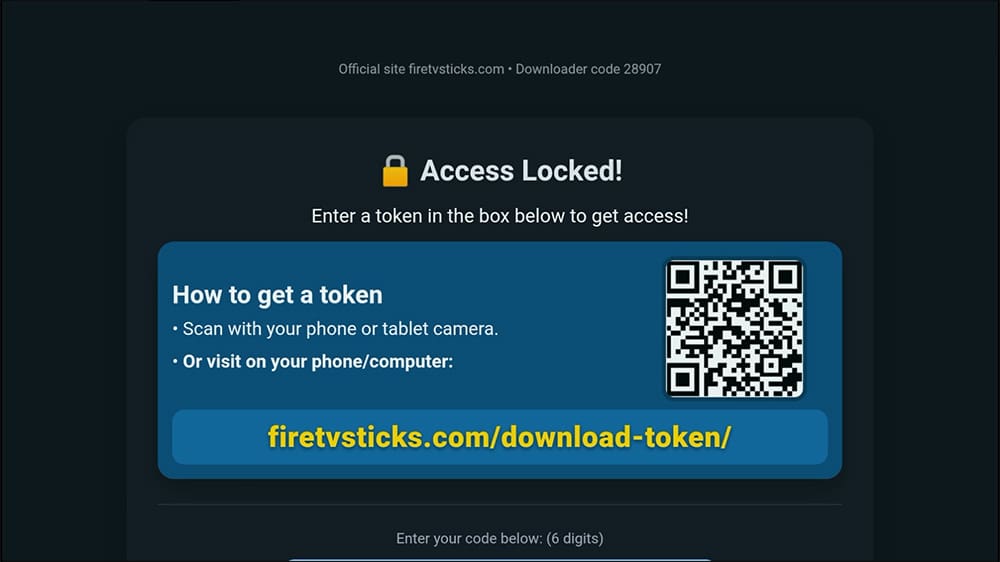
Step 3: Obtain a Token
- Open Downloader again.
- In the URL box, enter 28907, then press Go
- Once the page loads, press the menu button on your remote twice to enter full-screen mode
To ensure the site remains fast and protected from automated abuse, you will need to generate a quick access token.
Use your phone or tablet to:
- Scan the QR code or
- Visit the web address shown
- Tap Generate Token
- If any ads or pop-ups appear, simply close them as you normally would
- Enter the token on your Fire TV
You’ll now unlock the download categories.
Step 4: How to Install Kodi on Fire TV (Latest Stable Version)
Updating Kodi: What You Should Know
Updating Kodi will not remove your settings or content if you’re already on a recent version.
However:
- Very old versions may cause some community add-ons to stop working
- Official add-ons continue to work as expected
If you’re optimising your Fire TV overall, you may also want to review our Fire TV performance guide and cache-clearing walkthrough to keep everything running smoothly.
Now, let’s continue to install Kodi on Fire TV.
- Select Media Players
- Choose Kodi
- Scroll down to the Fire TV download link
- Select the stable version
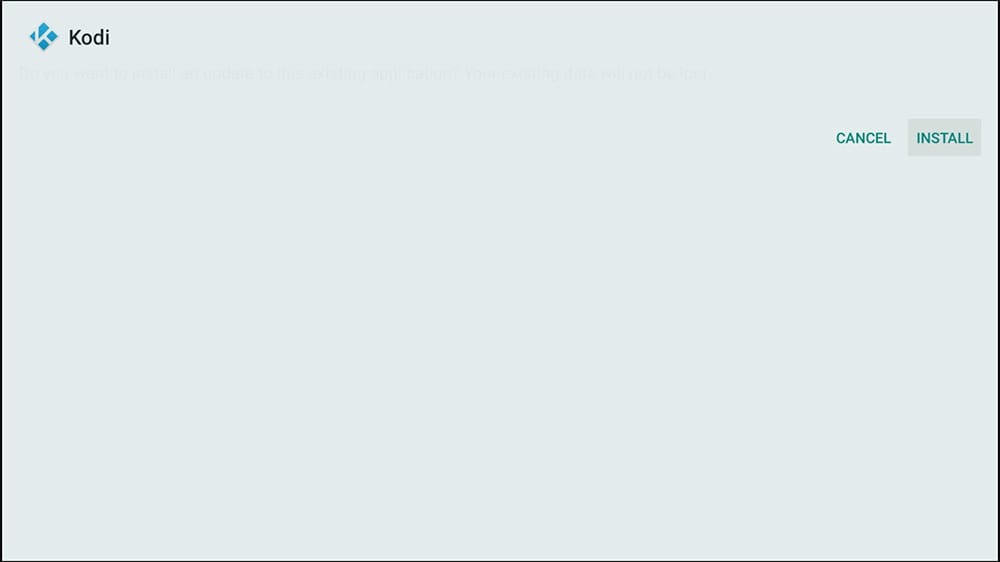
- Follow the on-screen prompts
Once installation finishes:
- Select Done
- Choose Delete
- Confirm Delete again
This removes the installation file and frees up storage.
Kodi is now installed and ready to use.
If Kodi buffers or freezes after installation, follow our complete guide to fix Kodi buffering and freezing on Firestick and Android TV.
This guide is for educational purposes only. It uses official Fire TV settings and does
not bypass security or modify system files. How you use Kodi is always your responsibility.
FAQ: Install Kodi on Fire TV
What is Kodi?
Kodi is a powerful, open-source media player that allows you to play your own local media, stream content via official and community add-ons, and create a custom media setup. It does not come with pre-loaded content and is not associated with piracy.
Is Kodi legal to use?
Yes, Kodi itself is a legal media player. Its legality depends on how you use it and what add-ons you install. This guide focuses on installing the official Kodi application safely and legally.
Will installing Kodi harm my Fire TV?
No, following this guide involves enabling official Fire TV settings and does not modify system files or bypass security. You are simply sideloading a trusted third-party application.
Can I install Kodi on a Fire TV Stick 4K Select?
Unfortunately, the Fire TV Stick 4K Select currently restricts access to developer options, preventing the sideloading of third-party apps like Kodi. This guide is suitable for all other Fire Tv Stick models, Fire TV Cube, and Fire TV televisions that support developer options.
How long does the installation process take?
The entire process to install Kodi on your Fire TV typically takes less than 5 minutes.
Final Verdict
Kodi remains one of the most powerful and flexible media platforms available on Fire TV.
Installed correctly, it’s safe, official, and future-proof — even as Amazon tightens platform rules.
If you care about control, customisation, and long-term flexibility, Kodi is still worth installing.
Looking for more step-by-step guides like this?
Explore our Streaming Guides & How-To hub for Fire TV setup, app installation, performance fixes, and advanced tips.
A: Kodi is a powerful, open-source media player that allows you to play your own local media, stream content via official and community add-ons, and create a custom media setup. It does not come with pre-loaded content and is not associated with piracy.
A: Yes, Kodi itself is a legal media player. Its legality depends on how you use it and what add-ons you install. This guide focuses on installing the official Kodi application safely and legally.
A: No, following this guide involves enabling official Fire TV settings and does not modify system files or bypass security. You are simply sideloading a trusted third-party application.
Unfortunately, the Fire TV Stick 4K Select currently restricts access to developer options, preventing the sideloading of third-party apps like Kodi. This guide is suitable for all other Fire Tv Stick models, Fire TV Cube, and Fire TV televisions that support developer options.
The entire process to install Kodi on your Fire TV typically takes less than 5 minutes.
Time needed: 5 minutes
Learn how to install the official stable version of Kodi on your Fire TV device safely. This step-by-step guide covers the latest updates for 2026, including the necessary developer options and sideloading permissions.
- Install the Downloader App
From the Fire TV home screen, navigate to Find > Search. Type ‘Downloader’ and select the orange icon. Click ‘Get’ or ‘Download’ to install the app and select ‘Allow’ for media permissions once it opens.

- Enable Developer Options
Navigate to Settings > My Fire TV > About. Highlight your device name and press the ‘Select’ button on your remote 7 times. Return to the previous menu, and ‘Developer Options’ will now be visible.

- Allow Unknown Apps
Open the newly unlocked Developer Options menu. Select ‘Install unknown apps,’ find Downloader in the list, and toggle it to ‘ON.’ This gives Downloader the permission to install Kodi.

- Generate a Secure Access Token
Open Downloader and enter the code 28907. Once the site loads, scan the QR code with your smartphone to generate a secure access token. Enter this code on your TV to unlock the official Kodi download links.

- Download and Install Kodi
Select the Media Players category and choose Kodi. Scroll down to the ‘Stable Version’ link for Fire TV and click it. Follow the on-screen prompts to ‘Install.’ Once finished, select ‘Done’ and then ‘Delete’ to remove the installation file.


Leave a comment