Step-by-Step Setup for Popular Streaming Apps on Firestick & Google TV.
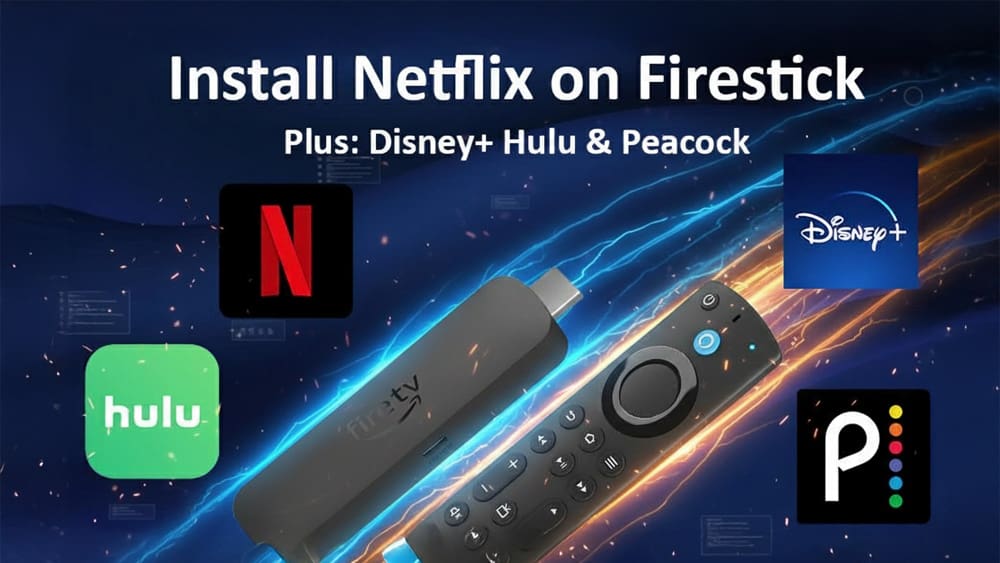
Install Netflix on Firestick is one of the first things new users want to do with their device. Alongside Netflix, other must-have apps like Disney+, Hulu, and Peacock are just a quick install away. In addition, while this guide focuses on Firestick, we’ll also explain how to set up these apps on Google TV. As a result, you’ll have all the essential streaming services ready to go.
For more installation and sideloading tutorials, explore our App Installation & Sideloading hub, where we cover safe APK installs, setup guides, and troubleshooting.
Installing apps on Firestick is simple thanks to Amazon’s built-in Appstore. Here’s how to get each of the big four streaming apps:
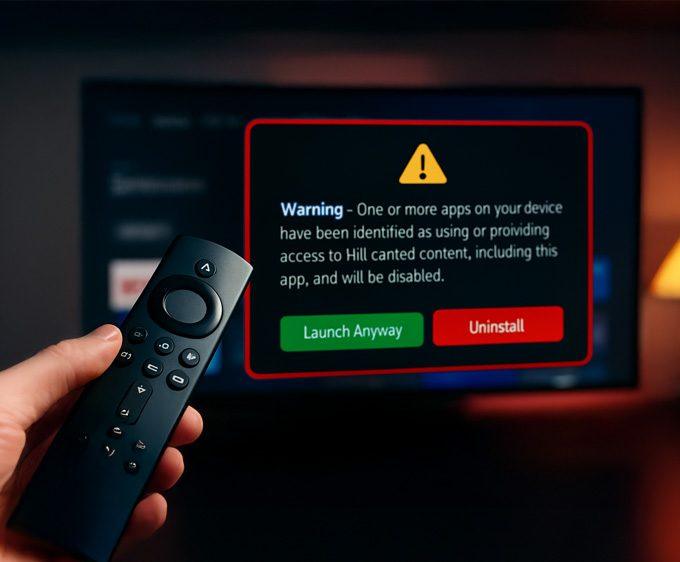
If you open an app and it refuses to launch, some Fire TV devices now show a new alert when apps are flagged — you can see the exact Firestick warning message and the full list of affected apps here: 👉 Firestick Blocks Are Now LIVE: The Exact Warning & Full List of Affected Apps.
Peacock recently expanded to Amazon Prime Channels. Therefore, you may also see an option to subscribe directly through Amazon.
Although this guide focuses on Firestick, Google TV users can install the same apps through the Google Play Store.
Moreover, all four apps are officially supported. This makes the process quick and straightforward. However, if an app is missing due to region restrictions, you can sideload the APK. To learn how, see our How to Sideload Apps on Fire TV & Google TV Safely (2025 Guide).
If you also want to access region-restricted streaming libraries safely, our Proton VPN Free setup guide for Firestick and Google TV shows you how to install a secure, no-logs VPN at no cost.
You can also explore our wider Streaming Guides & How-To hub for tutorials covering device setup, optimisation tips, and Firestick/Google TV walkthroughs.
Installing Netflix, Disney+, Hulu, and Peacock on Firestick (and Google TV) is quick and easy — all four apps are officially available in their respective app stores.
For Firestick users, this means you don’t need to sideload or risk unofficial versions. Furthermore, with Peacock’s expansion into Amazon Prime Channels and Google TV’s growing app library, these services are more integrated than ever.
Once you’re set up, you’ll have access to the most popular streaming platforms right on your Firestick or Google TV, with support for 4K HDR and personalised recommendations.
For more app install and sideloading guides, visit our App Installation & Sideloading hub.
Tanya is the founder of unboxd.tech, where she shares guides, reviews, and tips on streaming devices and apps. She focuses on making streaming simple with practical fixes and smart home insights.
To sideload apps on Fire TV and Google TV is easier than...
ByTanya4 months Ago
Hi, i need to update the peacock app on my firestick but firestick tricks where i used to get it from is no longer showing downloads.
i’ve read your instructions on how to install peacock but when i look on amazon app store nothing shows up.
im not sure if im doing something wrong hopefully you can advise me on where to download app from.
Best Regards
Steve A
Do you have a subscription with Peacock? If so, you can try subscribing through Amazon Prime channels directly by following this guide – Amazon Adds Peacock to Prime Channels: Streaming Aggregation in 2025.