Friday , 2 January 2026
Home Streaming Guides & How-To App Installation & Sideloading Sideload Apps on Fire TV & Google TV Safely (2025 Guide)
App Installation & Sideloading

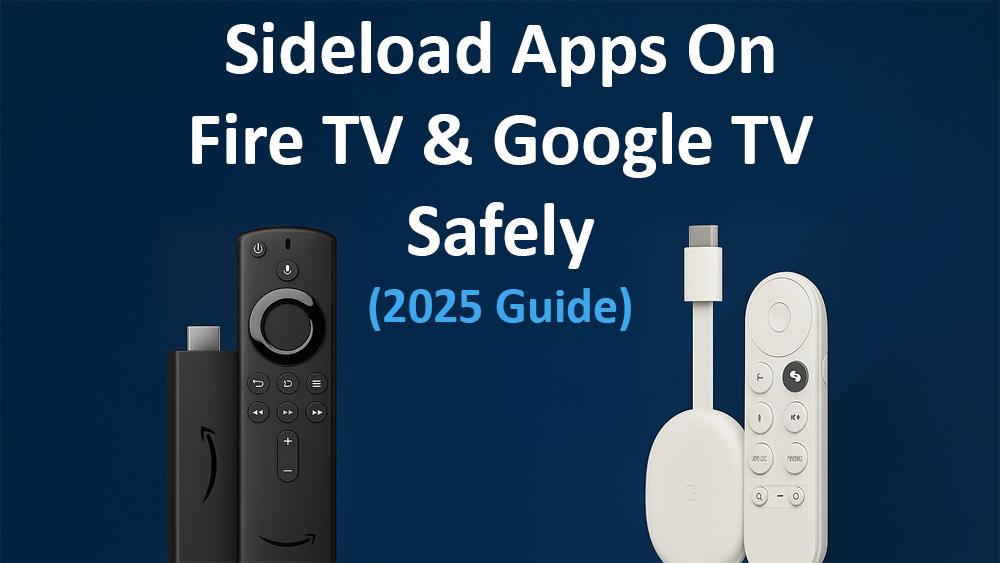
Sideload Apps on Fire TV & Google TV Safely (2025 Guide)

A Step-by-Step Guide to Installing Apps Outside the App Store Without Risks.

Sideload Apps on Fire TV & Google TV Safely

To sideload apps on Fire TV and Google TV is easier than you think. These devices offer plenty of apps through their official stores, but sometimes the app you want isn’t available — maybe it’s region-locked, discontinued, or brand new. That’s where sideloading apps comes in.

For more installation and sideloading tutorials, visit our App Installation & Sideloading hub for safe APK installs, Downloader guides, and troubleshooting tips.

Sideloading lets you manually install APK files, giving you more flexibility and access to software not in the app store. However, it can expose you to risks like malware, broken apps, or account issues if not done carefully. This guide walks you through how to sideload apps on Fire TV and Google TV safely in 2025, step by step.

For added privacy when sideloading, you can also install a trusted, no-logs VPN directly on your Firestick or Google TV — our Proton VPN Free setup guide shows you how to do this safely and for free.

What Is Sideloading?

Sideloading means installing an app from outside the official store by manually transferring or downloading the APK (Android application file). Both Fire TV and Google TV run on Android-based systems, so sideloading works similarly to installing apps on an Android phone.

  • Fire TV: Uses Fire OS, Amazon’s custom Android skin.
  • Google TV: Built on Android TV with Google’s interface and services.

Sideloading bypasses the app store’s security checks. That’s why safety steps are essential.

Why Sideload Apps?

  • Access apps not available in your region.
  • Install apps Amazon or Google don’t list in their stores.
  • Try experimental apps before they’re officially released.
  • Replace missing apps after updates or removals.

However, you should always balance convenience with security risks — one reason why Google is planning to ban sideloading on Android TV & Google TV by 2026.

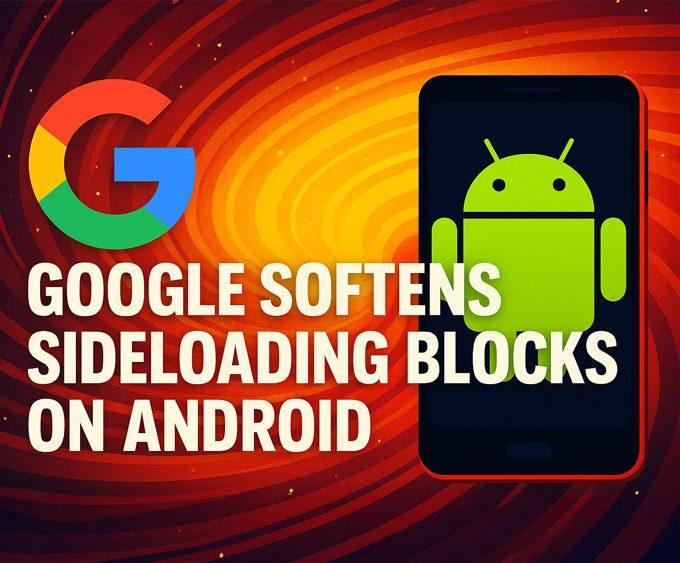
Google has recently adjusted its approach to these restrictions. Instead of a full ban, the company is introducing an “experienced user” workflow along with lighter developer verification.
For the latest breakdown, read: Google Softens Sideloading Blocks on Android.

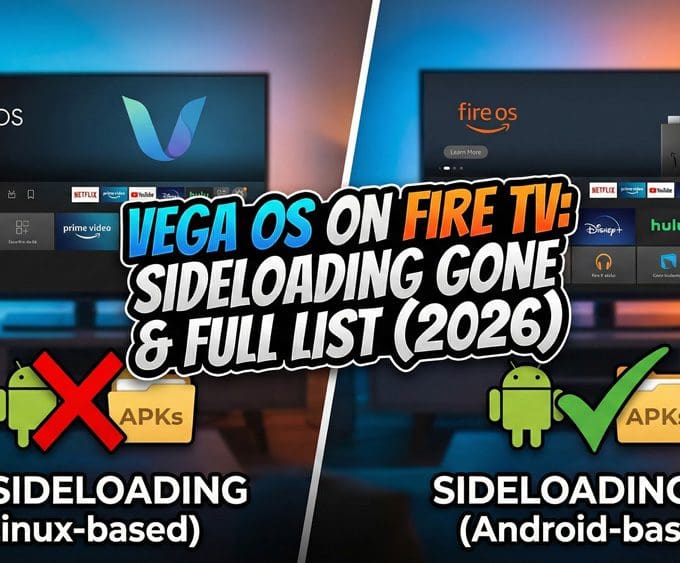
And it’s not just Google: Amazon’s upcoming Vega OS for Fire TV is also expected to remove sideloading support altogether. If you rely on sideloading, current Fire OS and Android TV devices may be your last chance to use it freely.

How to Sideload Apps on Fire TV Safely

  1. Go to Settings > My Fire TV > Developer Options.
  2. Turn on Apps from Unknown Sources.
  3. (Optional) Enable ADB Debugging if you plan to use a computer to install apps.
  4. Install a trusted sideloading tool like Downloader (available from Amazon’s app store).

With Downloader, you can paste a direct APK link or use a short code to fetch apps.

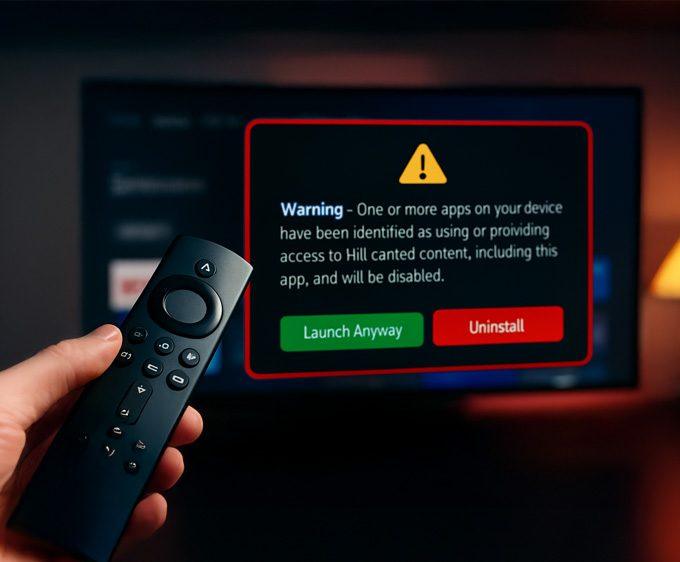
Amazon has also introduced a new device-level alert for certain apps on Fire OS — you can see the exact Firestick warning message and which apps are currently affected here: 👉 Firestick Blocks Are Now LIVE: The Exact Warning & Full List of Affected Apps.

How to Sideload Apps on Google TV Devices

  1. Open Settings > Apps > Security & Restrictions.
  2. Enable Unknown Sources for the installer app you’ll use (like Downloader or File Commander).
  3. Download the APK onto your Google TV or transfer it via USB/PC.
  4. Install using your chosen file manager or Downloader.

Safety Tips for Sideloading

Sideloading can be perfectly safe if you follow best practices:

✅ Download only from trusted sources (official developer websites, APKMirror, etc.).
✅ Check app permissions during installation.
✅ Scan APKs with a malware scanner before installing.
✅ Keep your device updated with the latest firmware.

Using a VPN when sideloading can also help protect your network traffic and prevent ISP-level tracking. If you want a free option, our Proton VPN Free Firestick & Google TV setup guide explains how to install it correctly.

Avoid “modded” or pirated APKs — they’re the top source of malware and may violate terms of service.

You can also browse our full Streaming Guides & How-To hub for tutorials on Firestick/Google TV setup, optimisation, and performance fixes.

Best Tools for Sideloading

  • Downloader App: The simplest way to grab APKs directly.
  • File Manager Apps: For installing APKs from USB drives or cloud storage.
  • ADB (Android Debug Bridge): Advanced option for sideloading via PC.

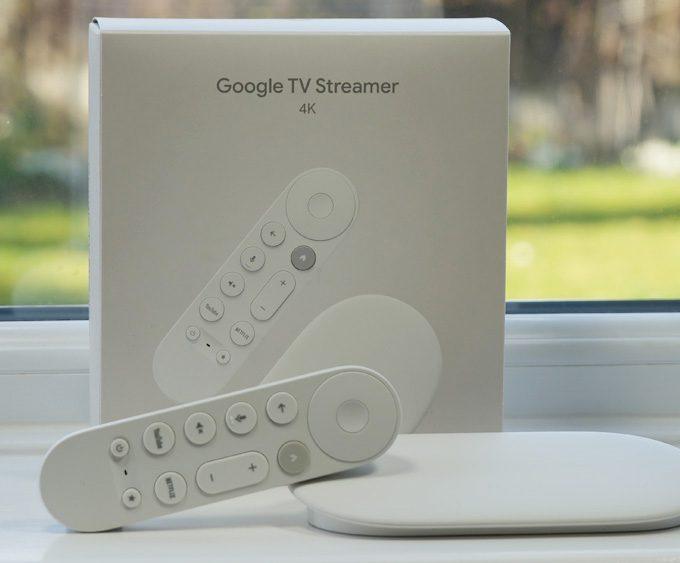
If you want a device that handles sideloaded apps smoothly, the Google TV Streamer 4K is a strong choice. Power users who sideload frequently may prefer the NVIDIA Shield TV Pro, which remains the most capable Android-based streamer in 2025.

Troubleshooting Common Issues

  • App Won’t Install: Check if the APK matches your device architecture (ARM vs x86, 32-bit vs 64-bit).
  • App Crashes or Won’t Open: Try updating or reinstalling. Some apps aren’t optimised for Fire/Google TV — though high-end devices like the NVIDIA Shield TV Pro often handle compatibility better.
  • Storage Errors: Clear cache or delete unused apps to free space.

Final Thoughts

Sideloading is a powerful way to expand your streaming device’s app library, but it comes with responsibilities. By using trusted sources and following safety tips, you can sideload apps on Fire TV and Google TV without putting your device at risk.

However, the future of sideloading is uncertain. Google has already confirmed plans to restrict sideloading on Android TV and Google TV by 2026. And with Amazon’s upcoming Vega OS replacing Fire OS on new Fire TV devices, it’s widely expected that sideloading will be locked down there as well.

That means the ability to sideload may become a legacy feature — one more reason to learn safe practices now while it’s still available.

For more safe app-installation tutorials and sideloading guides, visit our App Installation & Sideloading hub.

Written by
Tanya

Tanya is the founder of unboxd.tech, where she shares guides, reviews, and tips on streaming devices and apps. She focuses on making streaming simple with practical fixes and smart home insights.

7 Comments

  • Hi Tanya,
    Thank you for all you continue to do for the streaming community. I have been following so long I can’t remember when I started…lol. The new name is quite catchy. I look forward to many many more years of streaming with you. Regards,

    Ivan

  • Tanya bern following and using for years. All my apps have disappeared. Trying your code and nothing will download. Managed to see your new website and her you here but no tutorials or vids I can find. Please help

  • Hi ,
    I’ve been following you on youtube for ayear or two.
    I’m still not good at figuring this stuff out.
    I was having problems with your old site
    But didn’t know how to let you know.
    Eventually i couldn’t even get thing to download.
    Anyway I’m still subscribed to your channels on youtube & just wanted to let you know how much your i appreciate the help your channels have given me.
    ✌️☯️🙏

Leave a Reply

Your email address will not be published. Required fields are marked *

Related Articles

Install Netflix on Firestick: Plus Disney+, Hulu & Peacock (2025 Guide)

Install Netflix on Firestick is one of the first things new users...