Friday , 2 January 2026
Home Streaming Guides & How-To Troubleshooting & Performance Fix Streaming Lag & Buffering on Fire TV Devices (2025 Guide)
Troubleshooting & Performance

Fix Streaming Lag & Buffering on Fire TV Devices (2025 Guide)

Simple fixes to stop buffering, freezing, and stuttering on Firestick, Fire Cube, and Fire TV.

If your Firestick, Fire Cube, or Fire TV device keeps showing the dreaded buffering wheel, stuttering during playback, or freezing mid-stream, you need a reliable Fire TV buffering fix. Streaming should be smooth and enjoyable — not a battle with endless loading screens.

The good news? Most buffering and lag issues on Fire TV devices are easy to solve. In this guide, we’ll walk step by step through the most effective troubleshooting fixes. As a result, you’ll know exactly how to restore smooth streaming.

👉 Prefer to watch instead? A step-by-step video guide is available at the top of this article.

For more device-fix tutorials like this, explore our Troubleshooting & Performance hub, where we cover Firestick and Google TV fixes, network optimisation, and advanced diagnostics.

Using Multiple Streaming Devices? Update Those Too
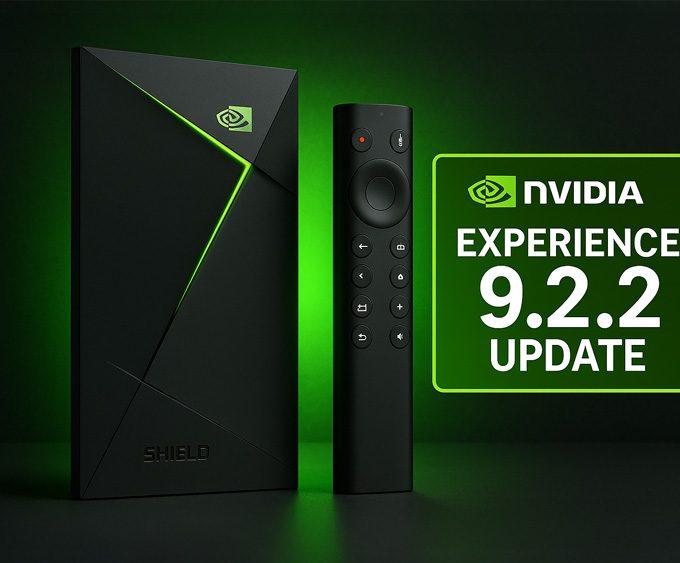
If you also stream on devices like the NVIDIA Shield TV, make sure they’re up to date. NVIDIA recently released the Shield Experience 9.2.2 update, which improves remote responsiveness, adds new accessibility tools, and fixes streaming issues such as the Disney+ audio dropout bug. Keeping both your Fire TV and Shield updated helps minimise lag, stuttering, and app crashes across your entire setup.

1. Restart Your Firestick

Restart your Firestick

It might sound too simple, but a restart often fixes many performance issues. Fire TV devices remain in a low-power state unless unplugged, which can cause temporary files and background processes to build up.

Think of it like rebooting your computer. In other words, a restart clears cached data and frees up memory, helping your device run more smoothly.

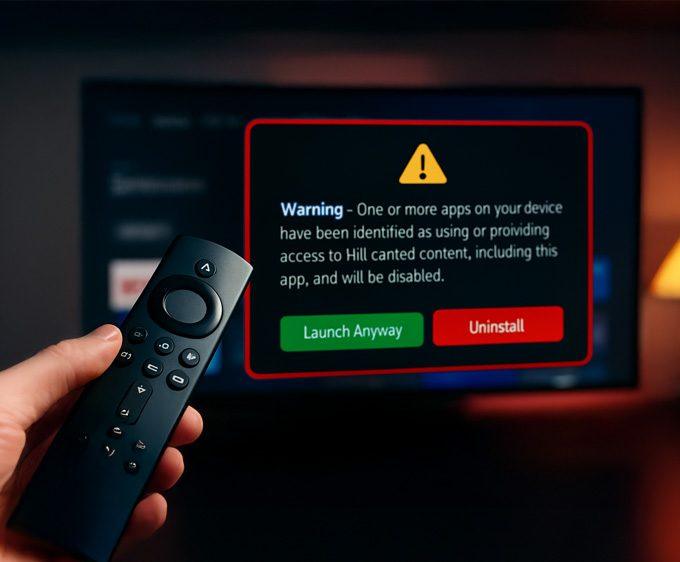
If an app still refuses to open after a restart, it may not be a buffering issue — some Fire TV devices now show a new alert when certain apps are flagged. You can see the exact Firestick warning message and full list of affected apps here: 👉 Firestick Blocks Are Now LIVE: The Exact Warning & Full List of Affected Apps.

If you also want a safe, privacy-focused VPN that works smoothly on Firestick and Google TV, see our Proton VPN Free setup guide — it’s one of the only free, audited VPNs that runs reliably on streaming devices.

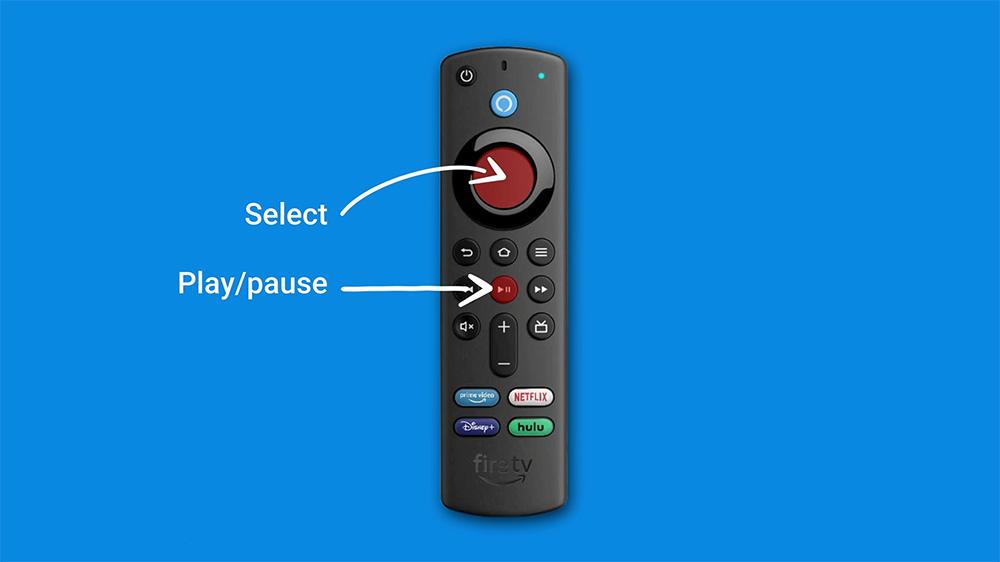
How to restart your Firestick with the remote:

  • Press and hold Select + Play/Pause for a few seconds.
  • Wait until you see a message confirming the device is restarting.
  • Release the buttons and allow it to reboot.

2. Check Your Internet Speed for a Fire TV Buffering Fix

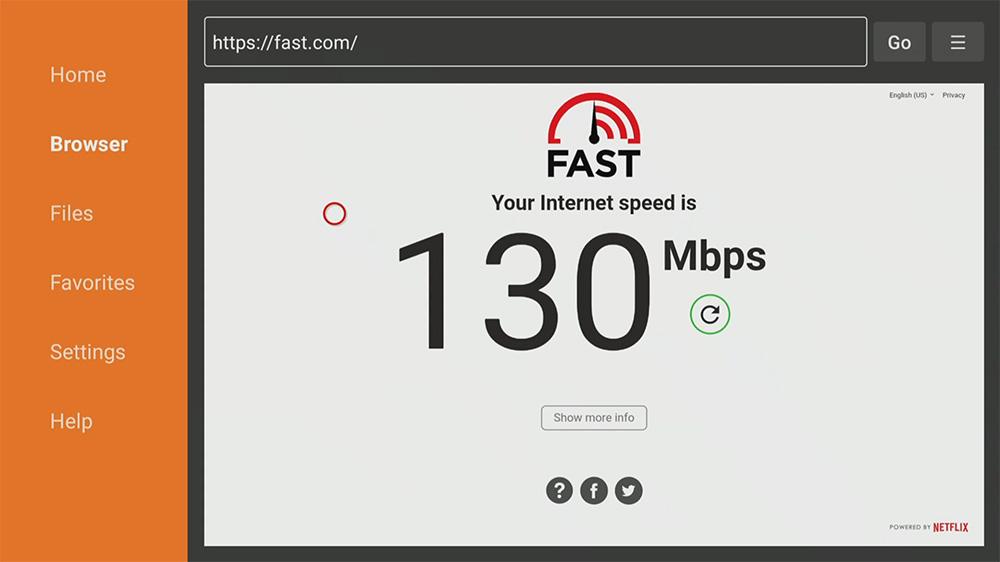
Check your download speeds to fix Fire TV buffering

If restarting doesn’t help, the next likely culprit is your internet speed. Streaming in HD or 4K requires a consistent connection:

  • HD streaming: ~10 Mbps
  • 4K streaming: ~25 Mbps

Test your speed directly on Fire TV:

  • Open the Silk Browser or the Downloader app.
  • Visit fast.com.
  • Compare your results to the recommendations above.

If you’re looking for a secure, no-logs VPN that works well on Firestick without costing anything, our Proton VPN Free on Firestick & Google TV guide walks you through the full setup.

📌 If your speed is too low, you have several options. For example, you can use an Ethernet adapter for Firestick, move your router to a central location, or switch to the 5 GHz Wi-Fi band. Each of these steps can reduce interference and improve stability.

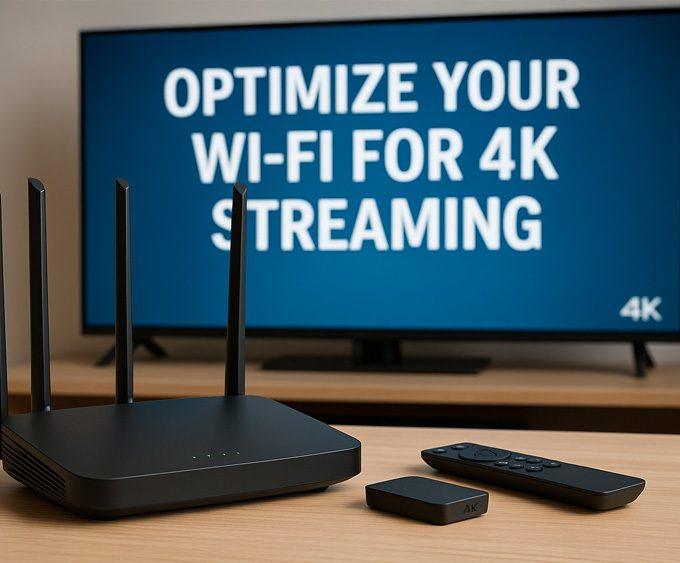
👉 For a deeper dive, check out our full guide: Optimise Your Wi-Fi for 4K Streaming Devices.

👉 In addition, using a VPN app slows your device. In these cases, setting up a VPN on your router can give smoother streaming performance.

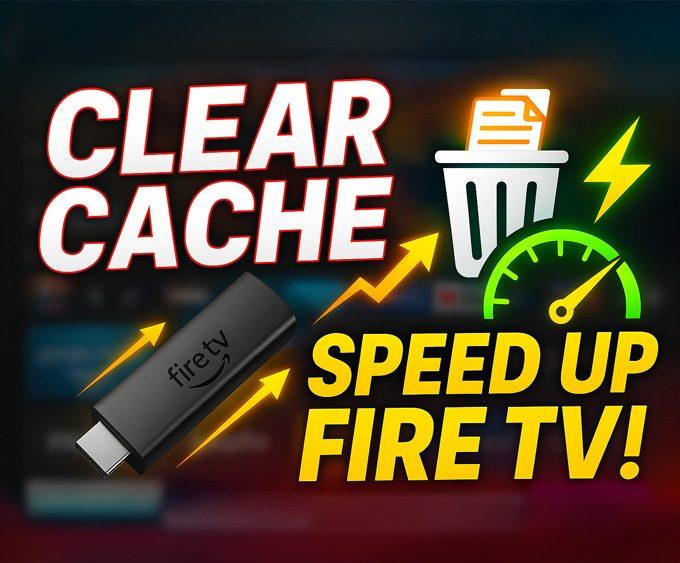
3. Clear App Cache: A Quick Fire TV Buffering Fix

Over time, apps store cached data that can clog up resources and cause lag. Therefore, clearing the cache is often one of the fastest fixes.

To clear cache on Fire TV:

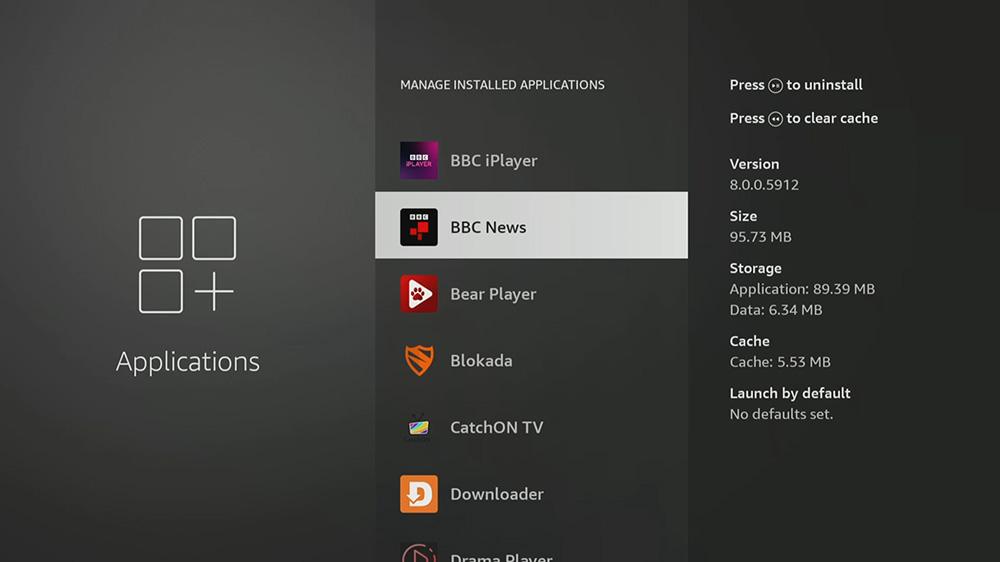
  1. Go to SettingsApplicationsManage Installed Applications.
  2. Select the app giving you issues.
  3. Press the Rewind button on your remote to clear its cache.

Moreover, if the cache size is over 100 MB, clearing it often solves buffering problems instantly.

👉 For a step-by-step walkthrough, see our full guide: How to Clear Cache & Improve Firestick Performance.

You can also browse our full Streaming Guides & How-To hub for step-by-step tutorials, Wi-Fi optimisation tips, and Firestick/Google TV performance guides.

4. Free Up Storage Space

Uninstall apps to free up space and fix Fire TV buffering

A full Firestick is a slow Firestick. In fact, when storage runs low, performance drops quickly. Aim to keep at least 500 MB of free space for smooth operation.

To free up storage:

  1. Go to SettingsApplicationsManage Installed Applications.
  2. Highlight unused apps and press Play/Pause on the remote.
  3. Select Uninstall.

On the other hand, keep in mind that some pre-installed Amazon apps (like Alexa Shopping or Amazon Photos) cannot be removed.

Conclusion

Buffering on Firestick doesn’t have to ruin your movie night. By restarting your device, checking internet speeds, clearing app cache, and freeing up storage, you can solve most streaming lag issues within minutes.

Still experiencing issues on NVIDIA Shield? The latest Shield Experience 9.2.2 update
includes key stability fixes that can reduce stuttering and streaming glitches on major apps.

Finally, if none of these fixes work, a factory reset is the last resort. This returns your Firestick to like-new condition and can solve deeper software problems that simple fixes won’t touch.

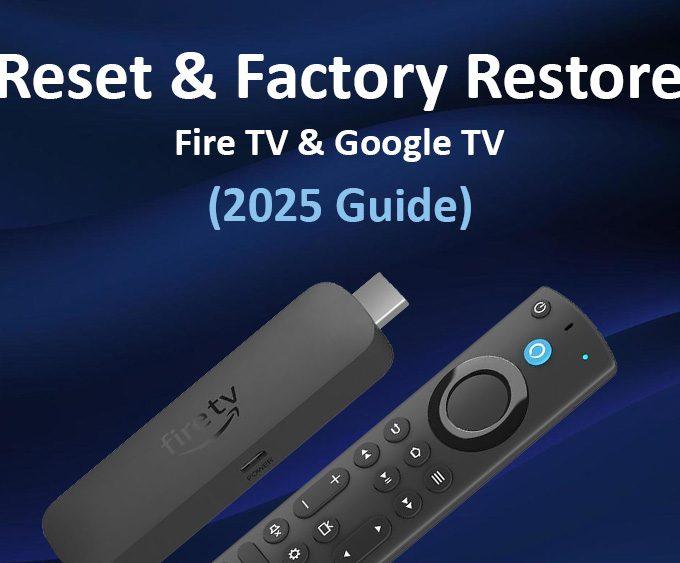
👉 For full instructions, check out our step-by-step guide: How to Reset & Factory Restore Your Fire TV or Google TV (2025).

For more Firestick and Google TV troubleshooting tutorials, visit our Troubleshooting & Performance hub.

📌 Also read:

Written by
Tanya

Tanya is the founder of unboxd.tech, where she shares guides, reviews, and tips on streaming devices and apps. She focuses on making streaming simple with practical fixes and smart home insights.

Leave a comment

Leave a Reply

Your email address will not be published. Required fields are marked *

Related Articles

How to Reset & Factory Restore Your Fire TV or Google TV (2025)

If your streaming device keeps freezing or lagging, sometimes the best fix...

Wi-Fi Setup for Streaming: Optimize Wi-Fi for 4K Devices (2025 Guide)

If you want smooth 4K playback, your Wi-Fi setup for streaming is...

How to Clear Cache & Improve Firestick Performance

If your Firestick feels sluggish or apps keep crashing, learning how to...