Friday , 2 January 2026
Home Streaming Guides & How-To Troubleshooting & Performance How to Reset & Factory Restore Your Fire TV or Google TV (2025)
Troubleshooting & Performance

How to Reset & Factory Restore Your Fire TV or Google TV (2025)

A complete step-by-step guide to troubleshooting and restoring your streaming device.

Reset & Factory Restore Firestick & Google TV

If your streaming device keeps freezing or lagging, sometimes the best fix is to reset Firestick and Google TV devices. In addition, a reset or factory restore can solve stubborn issues and restore smooth performance. In this guide, we’ll show you when to use a soft reset and when to perform a full factory restore on both Fire TV and Google TV.

For more device-fix tutorials like this, you can browse ourΒ Troubleshooting & Performance hub for Firestick and Google TV fixes.

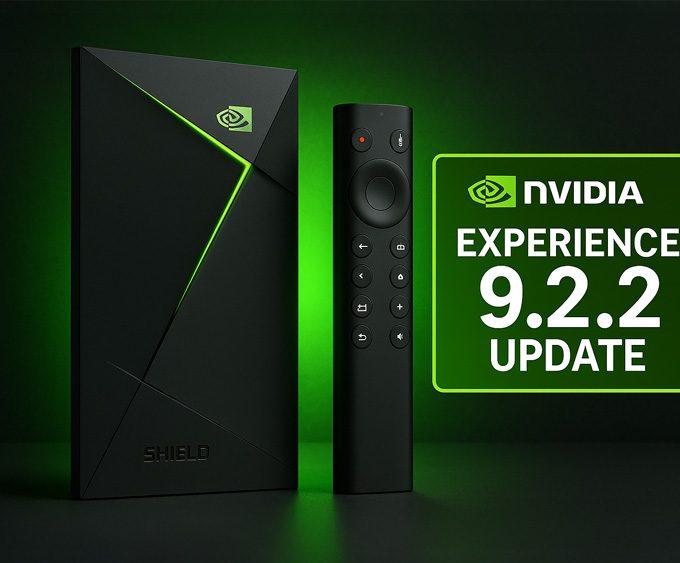
Using an NVIDIA Shield TV too? Try updating before resetting.Β If you also own an NVIDIA Shield TV, you may not need a full reset at all. NVIDIA recently released the Shield Experience 9.2.2 update, which fixes several stability issues β€” including the Disney+ audio dropout bug β€” and improves remote responsiveness and accessibility. Updating your Shield TV can often resolve performance problems without needing a full factory restore.

Reset Firestick and Google TV: Soft Reset vs. Factory Restore

Before diving in, it’s important to understand the two options:

  • Soft Reset (Restart):
    • Reboots your device without erasing any apps or settings.
    • Useful for temporary glitches, frozen apps, or sluggish performance.
  • Factory Restore (Full Reset):
    • Wipes all apps, accounts, and settings, restoring the device to its original state.
    • Best used if you’re selling your device, or if persistent errors won’t go away.

Always try a soft reset first before wiping your Firestick or Google TV completely. However, if the problem continues, a factory restore may be the only option.

You can also explore our wider Streaming Guides & How-To hub for more device setup tutorials, optimisation tips, and step-by-step streaming guides.

How to Reset Firestick (Fire TV Devices)

Restart your Firestick

Restart (Soft Reset)

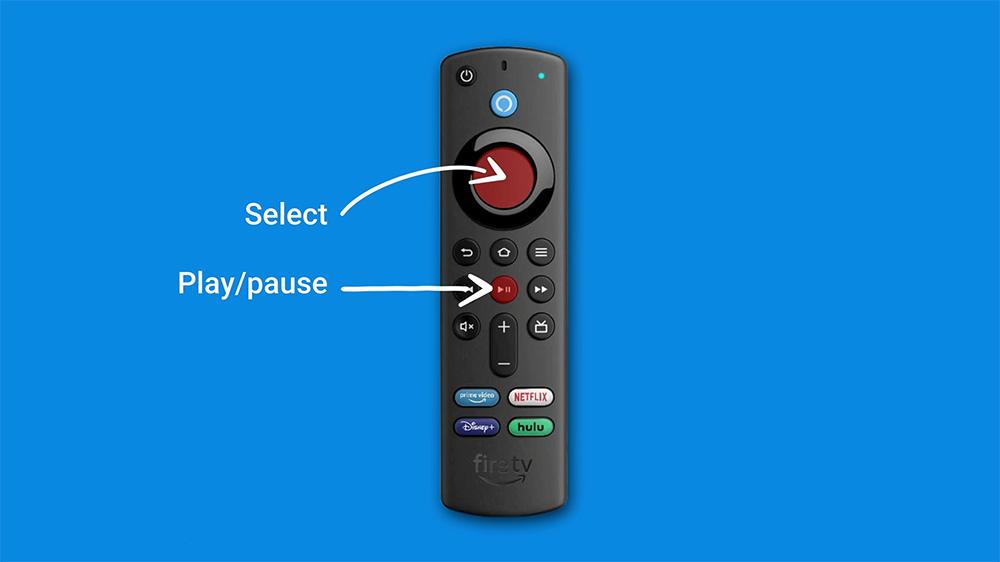
  1. Hold down the Select and Play/Pause buttons on your Fire TV remote for about 5 seconds.
  2. Your Fire TV will restart automatically.

Alternatively:

  • Go to Settings β†’ My Fire TV β†’ Restart.
  • Afterward, the device will reload and then often perform better.Β 

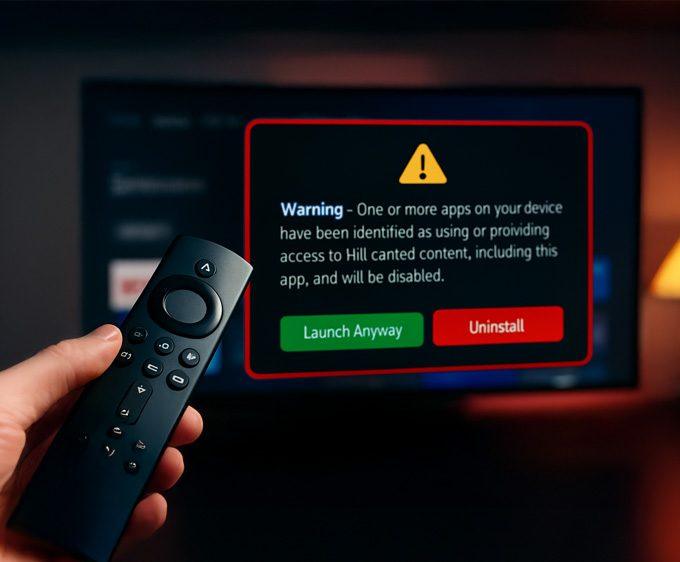
Before going through a full factory reset, check whether the app is being blocked β€” some Fire TV devices now show a new Firestick warning message when certain apps are flagged. You can see the exact warning and list of affected apps here: πŸ‘‰Β Firestick Blocks Are Now LIVE: The Exact Warning & Full List of Affected Apps.

Factory Restore

  1. Navigate to Settings β†’ My Fire TV β†’ Reset to Factory Defaults.
  2. Confirm when prompted β€” this will erase all apps and personal settings.
  3. Your Firestick will reboot and return to its original out-of-the-box setup.

πŸ‘‰ See also: Firestick 2025 Edition: What to Expect from Vega OS Devices.

How to Reset Google TV Devices

Factory Reset Google TV

Restart (Soft Reset)

  • Press and hold the power button on your remote until the TV restarts.
  • If that doesn’t work, unplug the device from the power source, wait 30 seconds, and plug it back in.

Factory Restore

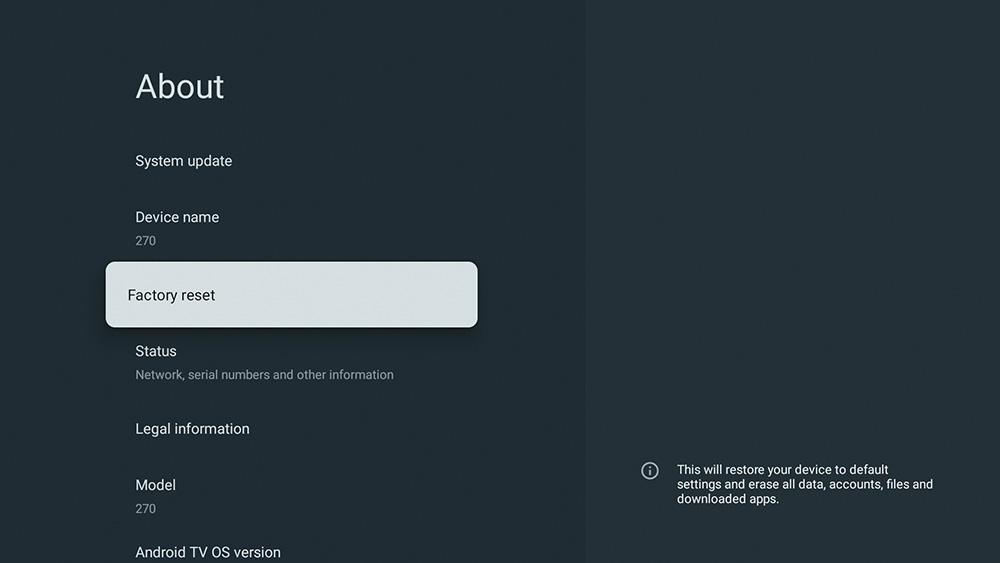
  1. Go to Settings β†’ System β†’ About β†’ Factory Reset.
  2. Confirm the reset and enter your PIN if required.
  3. The device will erase all accounts, apps, and data, then restart fresh.

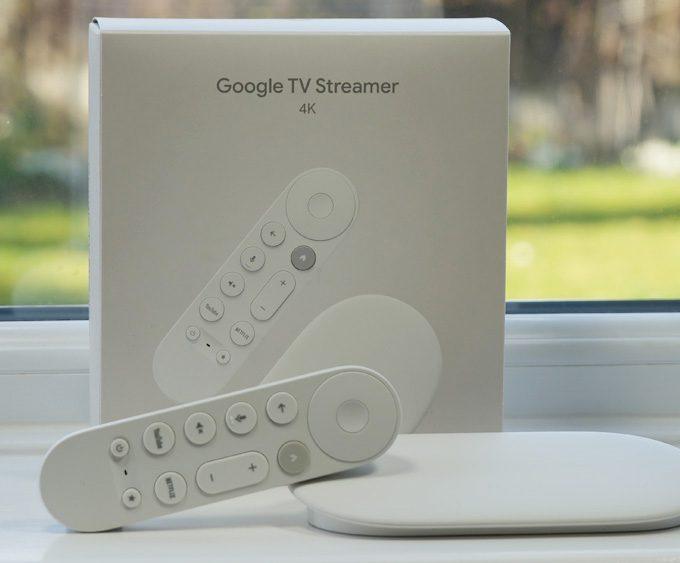
πŸ‘‰ Related: Google TV Streamer 4K Review.

Before You Reset Firestick and Google TV Devices

  • Backup important accounts: Make sure you know your Google or Amazon login details.
  • Check Wi-Fi passwords: After reset, you’ll need to re-enter your network credentials.
  • De-register devices if selling: Moreover, if you plan to see your device, for Fire TV, go to Amazon β†’ Manage Your Content and Devices and deregister.

When Resetting Isn’t Enough

Sometimes a factory reset won’t fully solve the problem. In that case, consider these additional steps:

Still seeing issues on NVIDIA Shield? Updating to the latest Shield Experience 9.2.2 firmware can resolve playback glitches and stability problems before you resort to a full system reset.

Conclusion

Learning how to reset Firestick and Google TV is essential for fixing performance issues and starting fresh. A quick soft reset often resolves minor glitches. On the other hand, a factory restore provides a clean slate for more serious problems.

Whether you’re troubleshooting errors or preparing your device for resale, following these steps ensures your Firestick or Google TV runs smoothly again. And remember, lighter fixesΒ β€” like clearing your Firestick cache β€” before going for a full reset.

For more Firestick and Google TV troubleshooting tutorials, visit ourΒ Troubleshooting & Performance hub.

FAQ

How do I factory reset a Google TV device?

Open Settings β†’ System β†’ About β†’ Factory Reset and confirm. You may be asked for a PIN. All accounts, apps, and settings are erased.

Yes. A factory reset removes all apps, login details, and downloaded content. Have your Amazon or Google account details ready to sign in again.

Note your Wi-Fi password, make sure you know your Amazon/Google account logins, and if selling the device, deregister it from your account after resetting.

Yes. Pair or replace the remote first, or use the manufacturer’s mobile app as a remote. If menus are inaccessible, unplug power for 30 seconds for a soft reset.

Usually 5–10 minutes. After the wipe, you’ll go through the initial setup and reinstall apps, which may take longer depending on your internet speed.

Test your Wi-Fi quality, try different HDMI ports/cables, and update firmware. If problems persist, contact Amazon or Google support for hardware diagnostics.

Written by
Tanya

Tanya is the founder of unboxd.tech, where she shares guides, reviews, and tips on streaming devices and apps. She focuses on making streaming simple with practical fixes and smart home insights.

Leave a comment

Leave a Reply

Your email address will not be published. Required fields are marked *

Related Articles

Fix Streaming Lag & Buffering on Fire TV Devices (2025 Guide)

If your Firestick, Fire Cube, or Fire TV device keeps showing the...

Wi-Fi Setup for Streaming: Optimize Wi-Fi for 4K Devices (2025 Guide)

If you want smooth 4K playback, your Wi-Fi setup for streaming is...

How to Clear Cache & Improve Firestick Performance

If your Firestick feels sluggish or apps keep crashing, learning how to...